 LeadQube
LeadQube User Guide
Everything LeadQube does, step by step: the free Chrome extension, what Premium adds in Gmail, and LeadQube Web, your CRM in any browser and on your phone.
Free and Premium
LeadQube is a Chrome extension that is free to use. Premium is an optional upgrade for your LeadQube account, bought once for a period (it does not renew by itself).
| Feature | Free | Premium |
|---|---|---|
| Board, list, lead details, Today, Calendar, Contacts | ✓ | ✓ |
| Capture leads from LinkedIn, Google Maps and CSV files | ✓ | ✓ |
| Follow-up reminders, Google Meet links, merging duplicates | ✓ | ✓ |
| Sync with your own Google Sheet, export and backup | ✓ | ✓ |
| Pipelines · custom fields per pipeline · saved views | 1 · 3 · 2 | Unlimited |
| LeadQube in Gmail: thread panel, compose templates, "remind me if no reply" | — | ✓ |
| Email open tracking, lead scoring | — | ✓ |
| Email and WhatsApp templates, mail merge | — | ✓ |
| Needs attention, products on leads | — | ✓ |
| Team plan: every Premium feature for everyone in a workspace, bought per seat by its owner | A separate plan, priced by team size | |
| Reports (with a monthly goal), stage automations, lead owners for teams | — | ✓ |
| LeadQube Web: any browser and phone, shared team workspace, reminder emails | — | ✓ |
| Lead forms for your website, booking page | — | ✓ |
Working with other people? The workspace owner buys a Team plan with a seat for each person. Everyone in the workspace then has every Premium feature without buying Premium themselves.
Prices are on the Pricing page.
Install the extension Free
- Open LeadQube in the Chrome Web Store and press Add to Chrome. It also works in Microsoft Edge, Brave and other Chromium browsers.
- Pin it: press the puzzle icon in the toolbar, then the pin beside LeadQube.
- Press the LeadQube icon. The board opens in a tab, with a short welcome.
- Choose Explore with sample leads to try everything on example data (remove them later in Settings → Help), or Start empty.
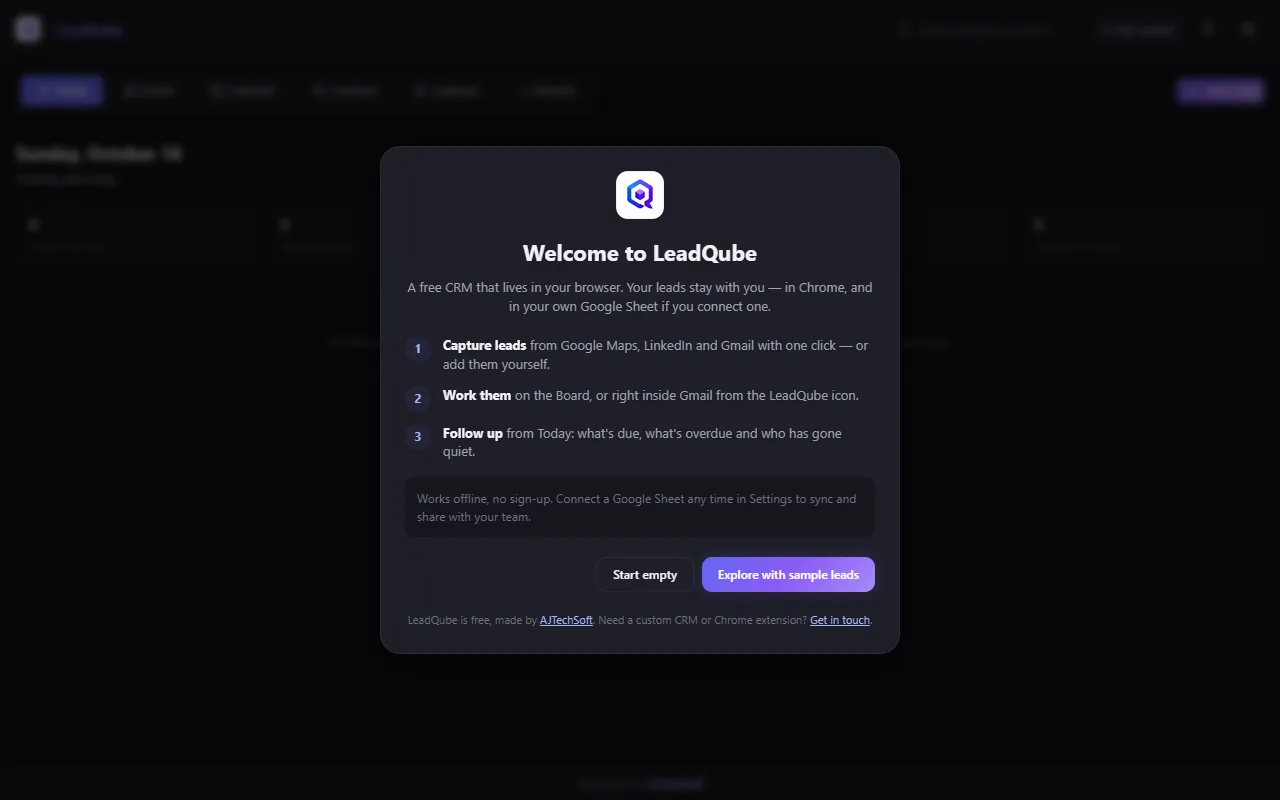
No account is needed for the free plan: your leads stay in your browser, and in your own Google Sheet if you connect one.
Your LeadQube account
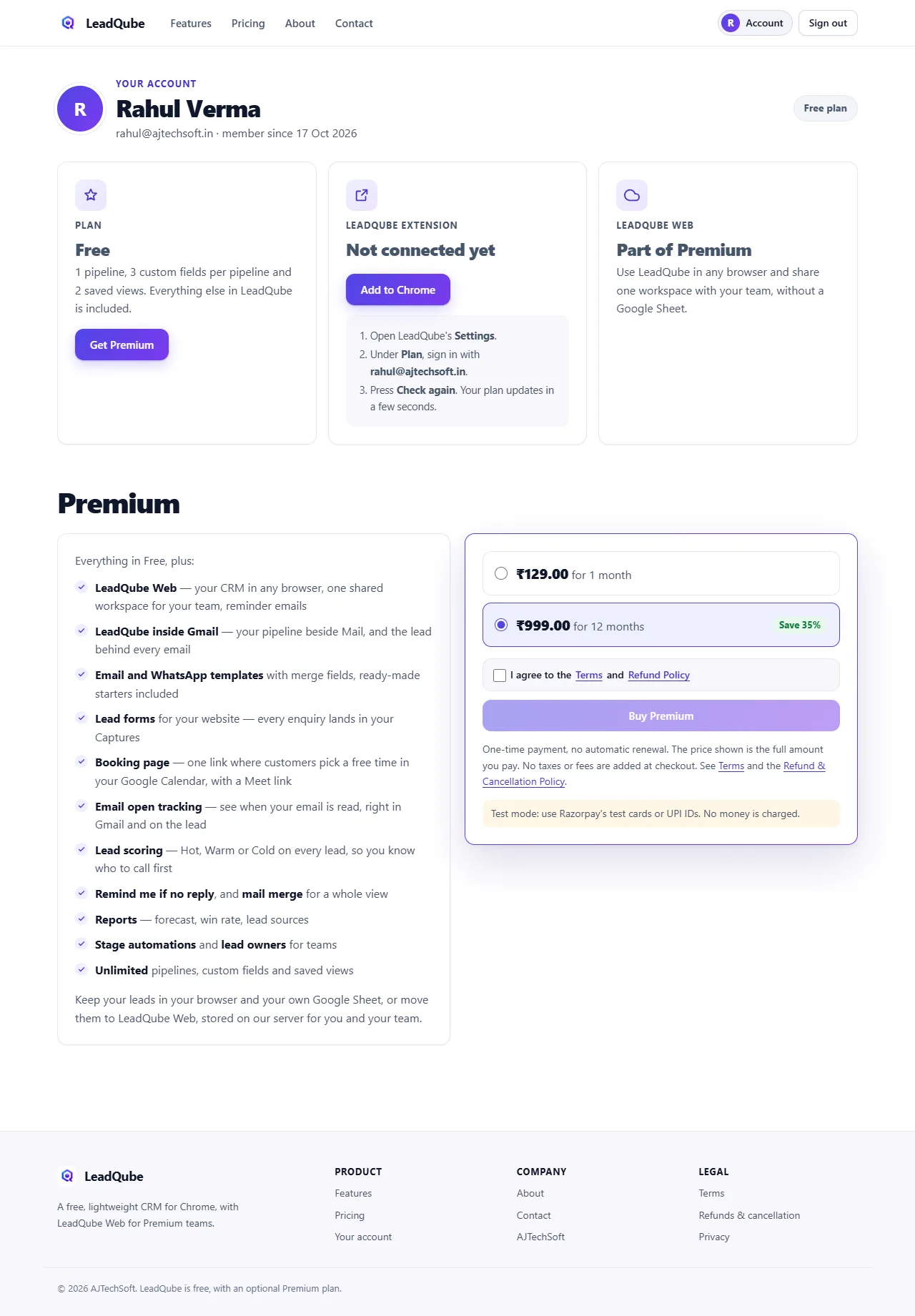
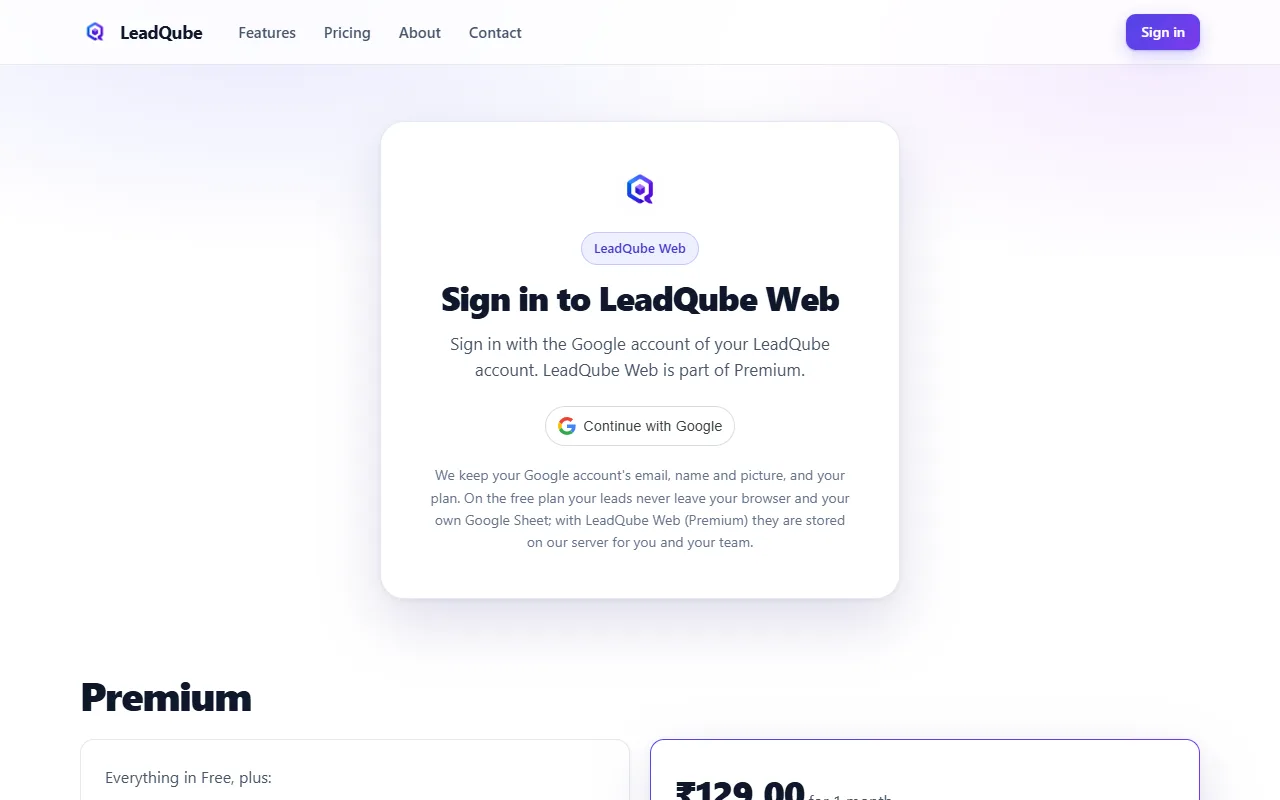
An account is needed for Premium, and for LeadQube Web. It is your Google account: go to Your account and press Continue with Google.
Buy Premium
- On your account page, under Premium, choose a plan.
- Tick I agree to the Terms and Refund Policy and press Buy Premium.
- Pay with UPI, card, net banking or a wallet (Razorpay). Premium switches on as soon as the payment is confirmed, and a receipt is emailed to you.
- In the extension, open Settings → Account and press Check again.
Buying again before Premium ends adds the new months after the current end date, so you never lose days by renewing early.
Board and list Free
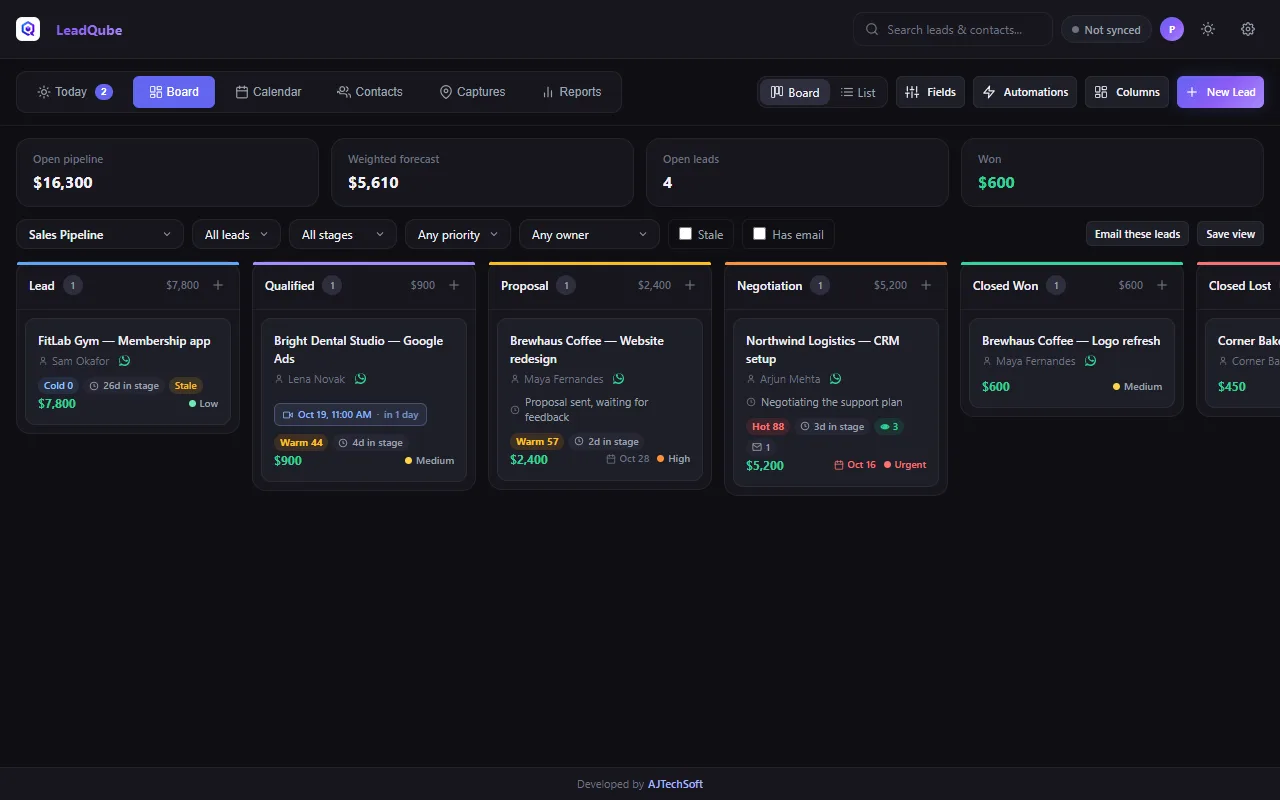
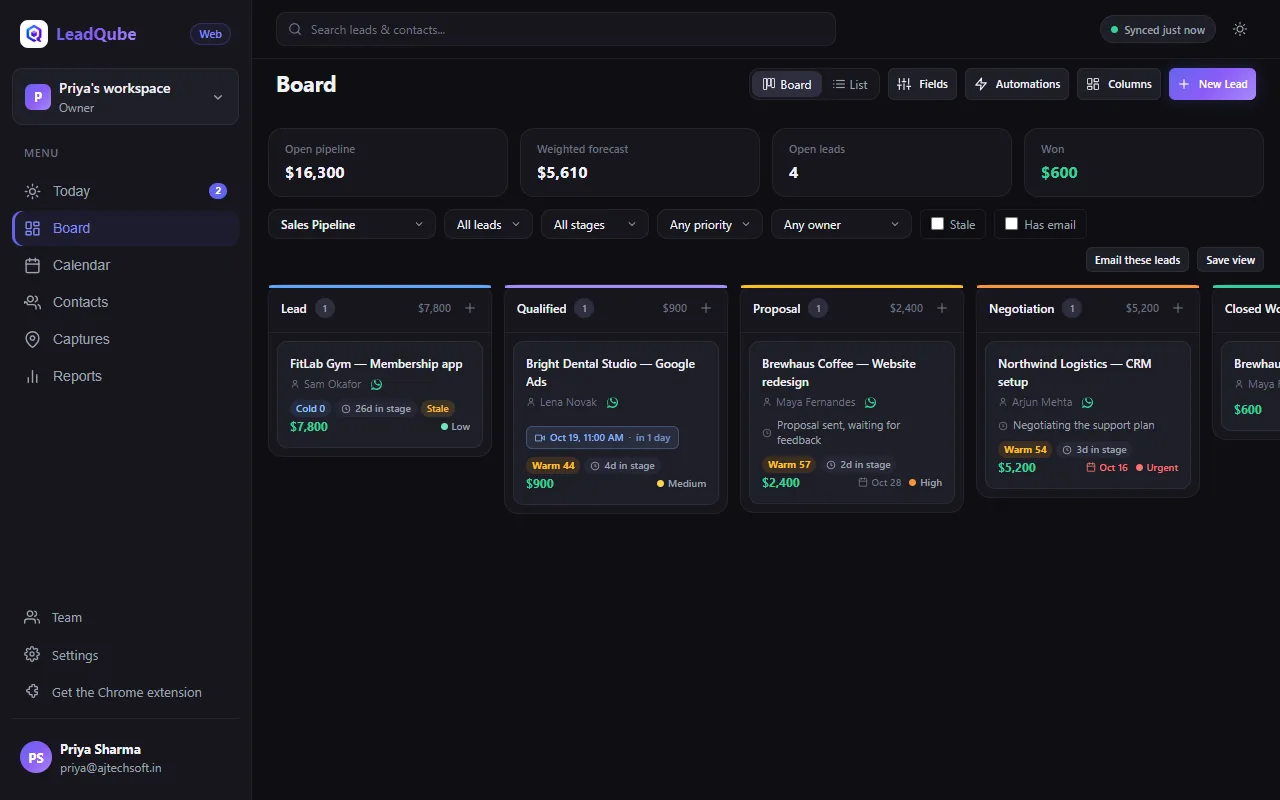
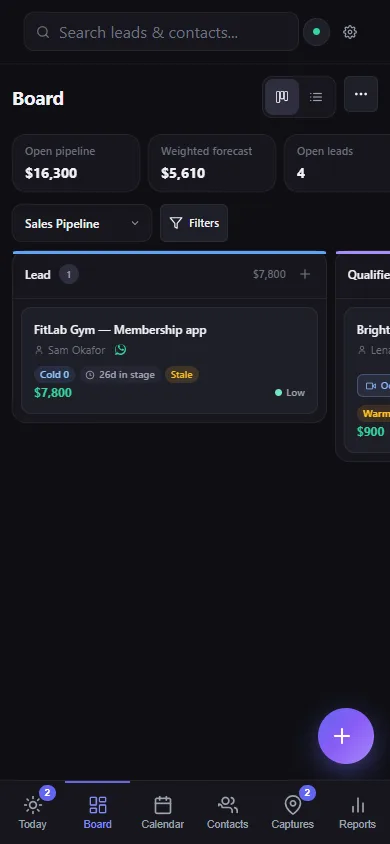
The board shows your leads as cards in columns, one column per stage (Lead, Qualified, Proposal, Negotiation, Won, Lost). The figures on top add up your open pipeline, weighted forecast, open leads and wins.
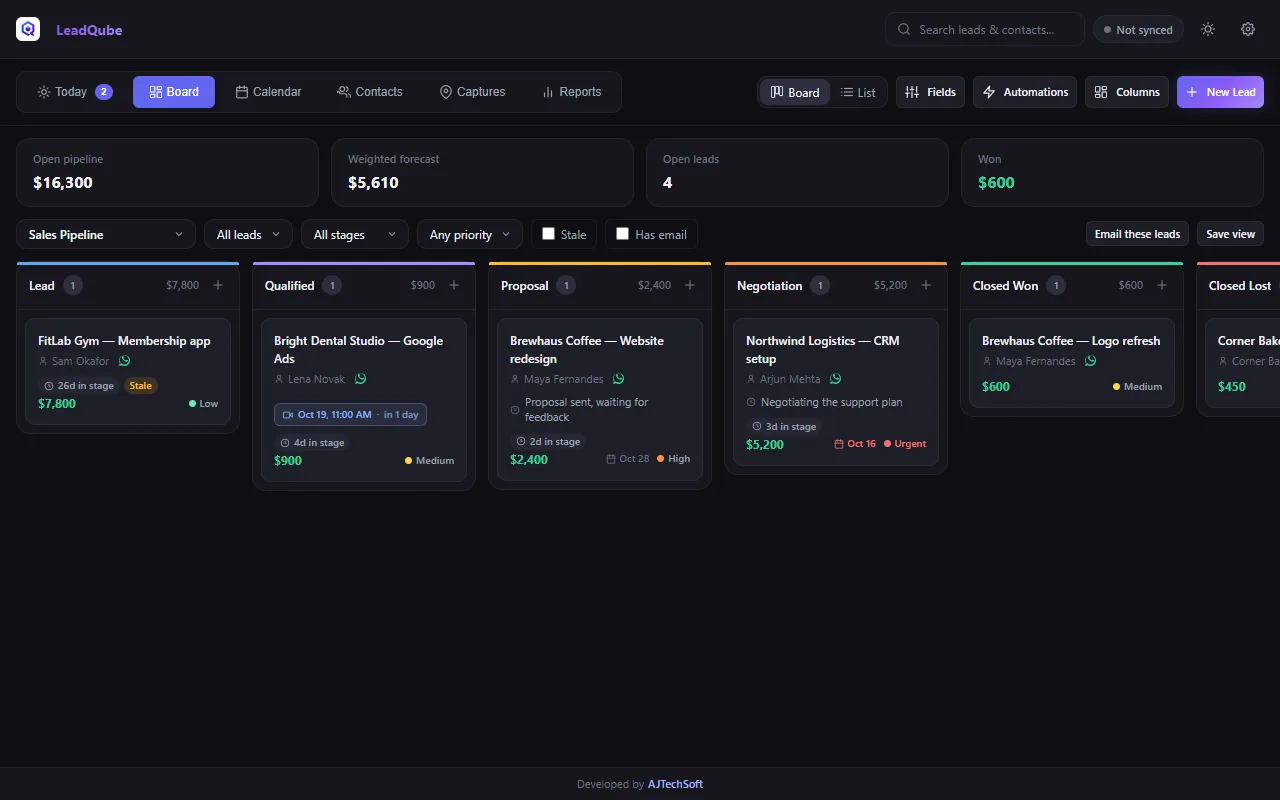
- Add a lead: press + New Lead (top right), or the + at the top of a column.
- Move a lead: drag its card, or right-click it and choose the stage.
- Each card shows the contact (tap the green WhatsApp icon to message them), an upcoming meeting, days in the stage, Stale when nobody has worked on it for a while, the value, the expected close date and the priority.
- Find leads: the search box at the top searches leads and contacts. The filter bar narrows by stage, priority, owner, stale or "has email".
- Saved views: set filters, then Save view to come back to them in one click (2 on the free plan).
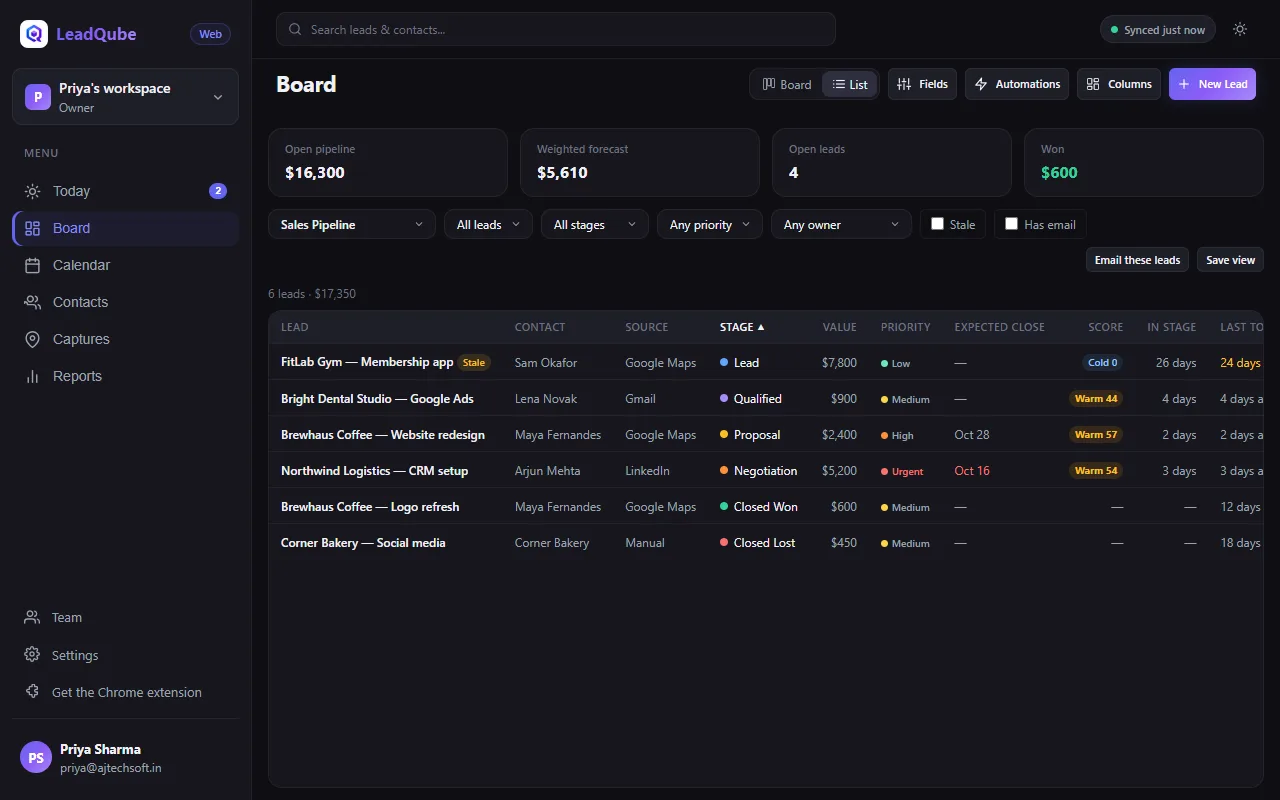
- List view: press List for a sortable table; press a column heading to sort by it.
- Your own stages and fields: Columns renames, colours, reorders, adds or removes stages; Fields adds custom fields (text, number, date, choice, checkbox) to the leads of a pipeline.
A lead's details Free
Click a card to open the lead. From here you can:
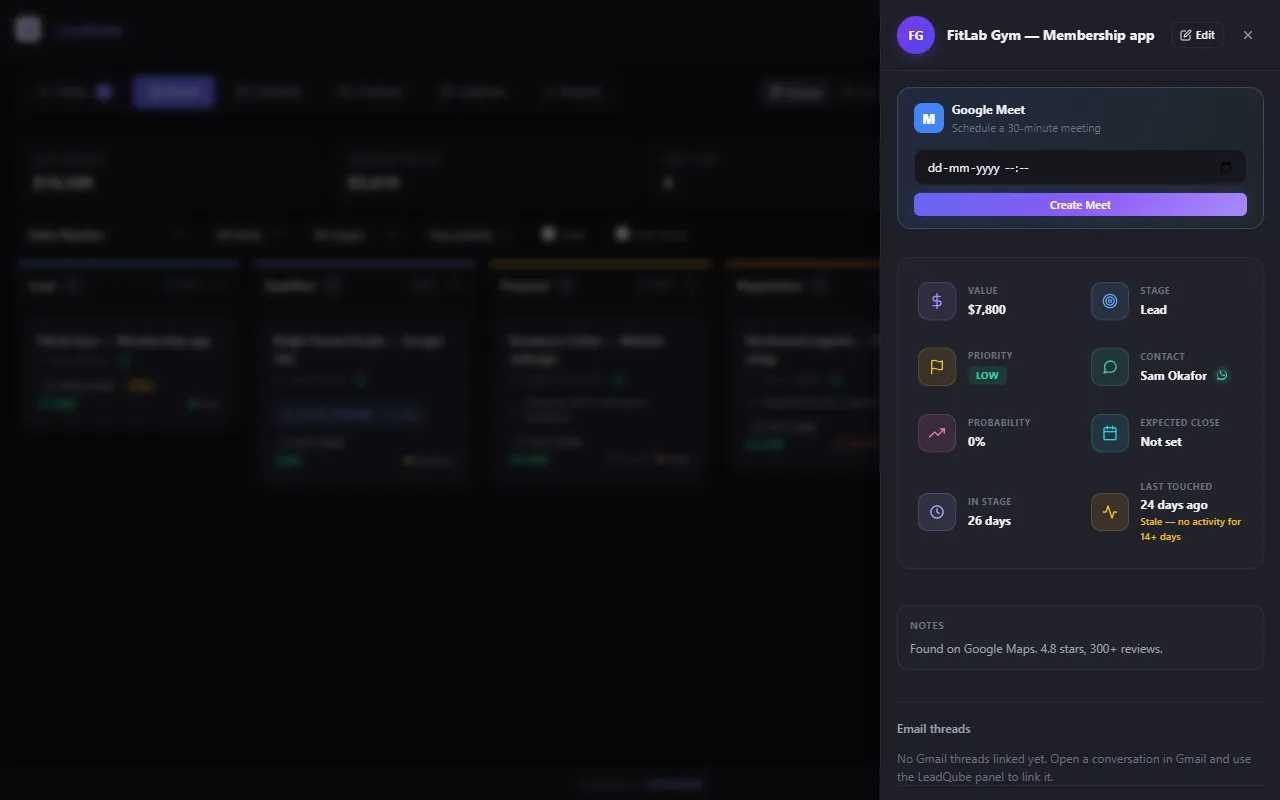
- Edit the lead: title, value and currency, stage, priority, probability, expected close date, status, contact and custom fields.
- Schedule a Google Meet: pick a date and time and press Create Meet. LeadQube adds a 30-minute event with a Meet link to your Google Calendar. Reschedule Meet moves it; Close Meet removes it.
- Log activity: notes, calls, emails and meetings go on the lead's timeline.
- Set a follow-up reminder: Chrome reminds you at the time you choose, and it shows under Today.
- See linked Gmail threads (with Premium, see LeadQube in Gmail).
Today Free
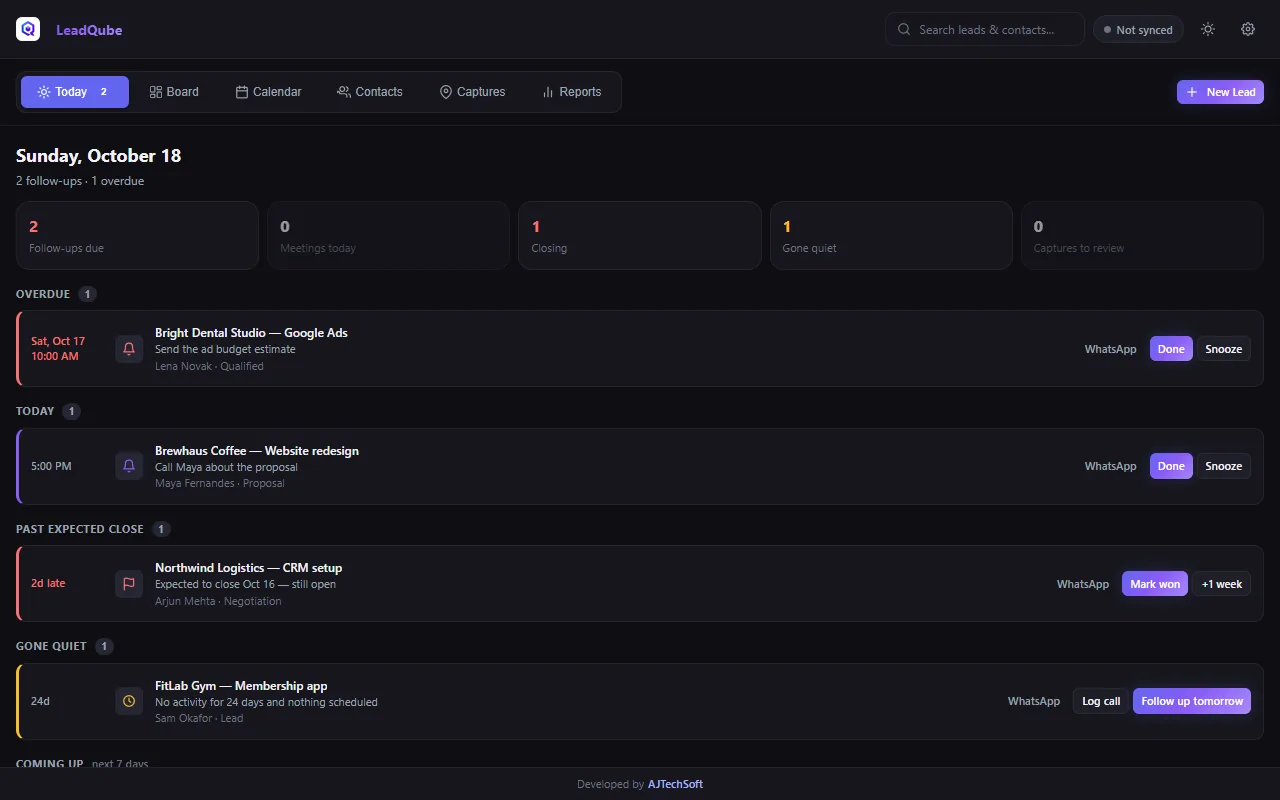
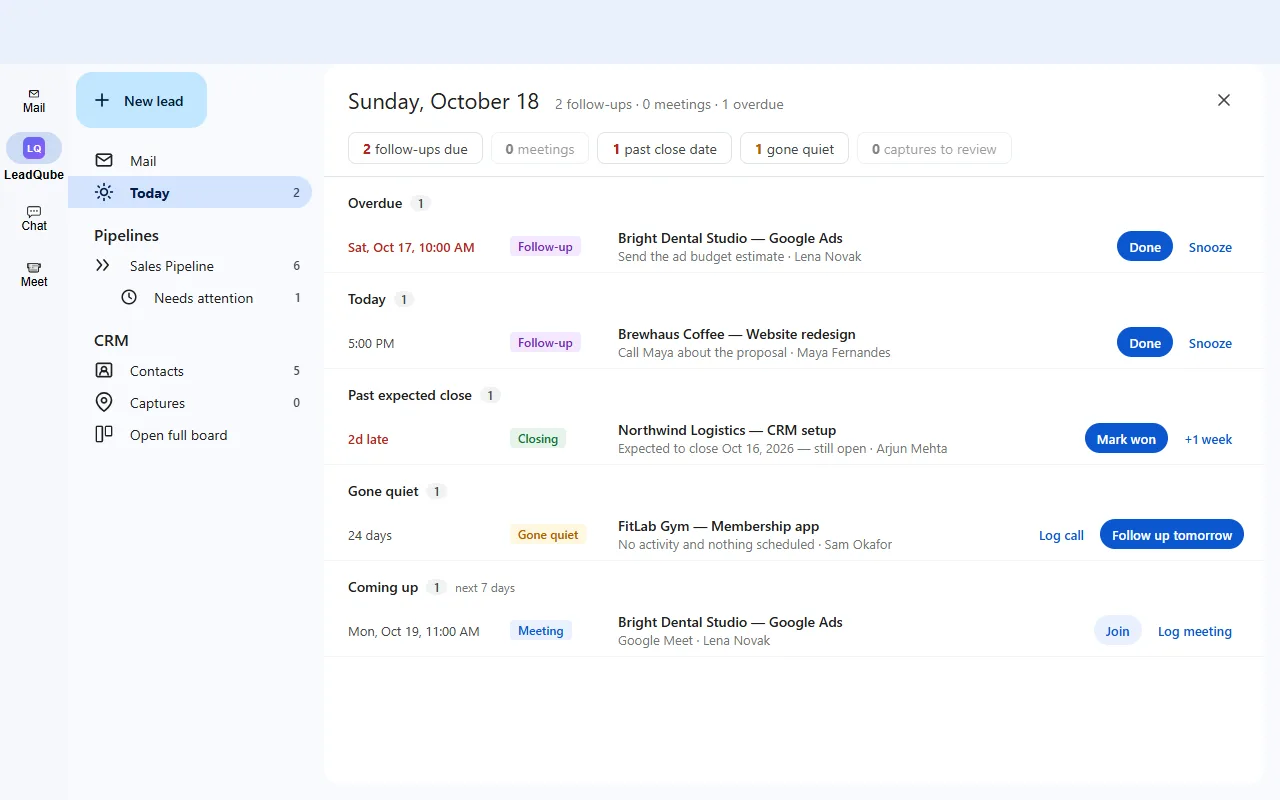
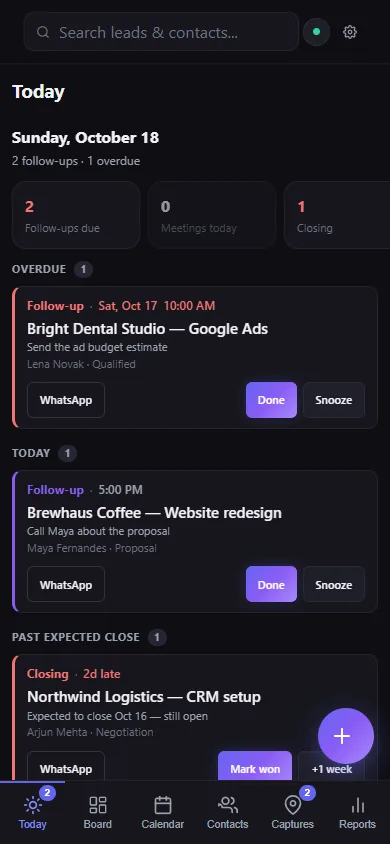
Your day on one screen: follow-ups that are overdue or due today, meetings, leads past their expected close date, leads that have gone quiet, and new captures waiting for review. Each row has its own actions: Done, Snooze, Log call, Follow up tomorrow, Mark won, +1 week, or WhatsApp.
Calendar Free
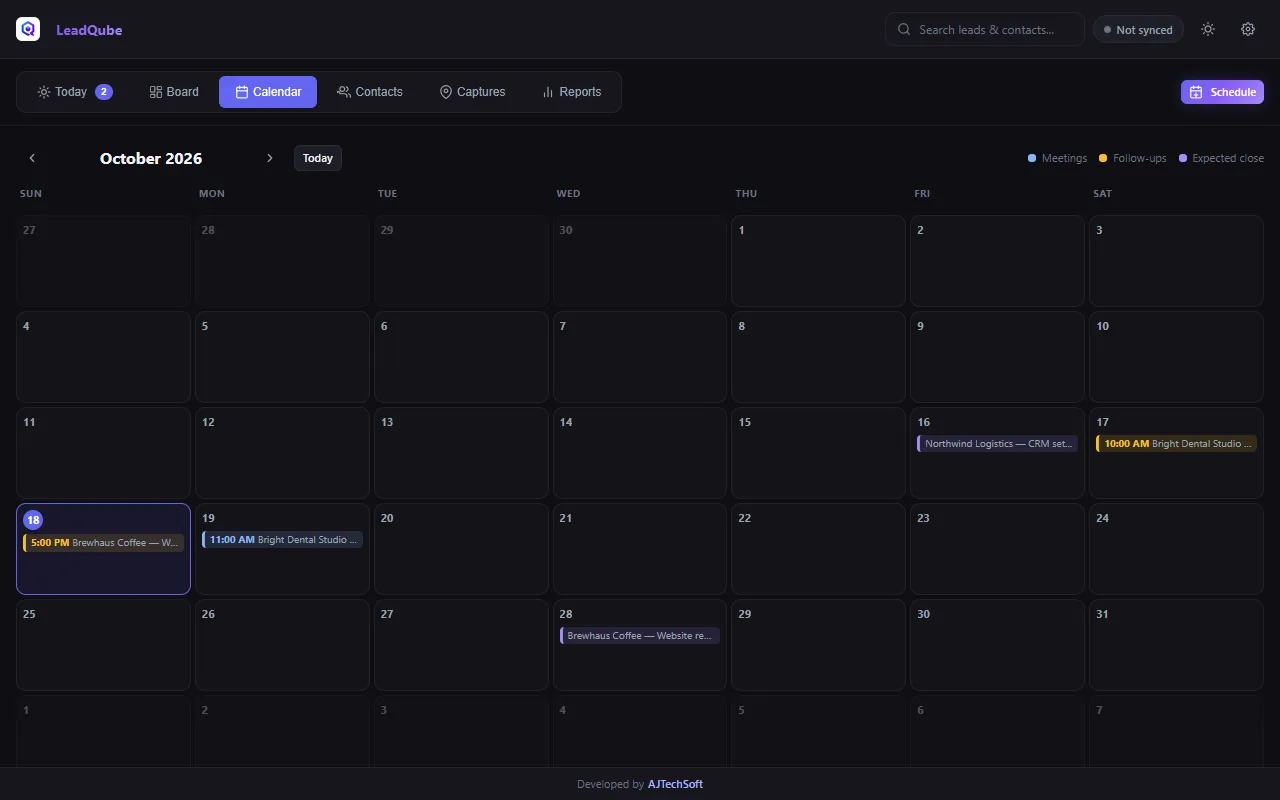
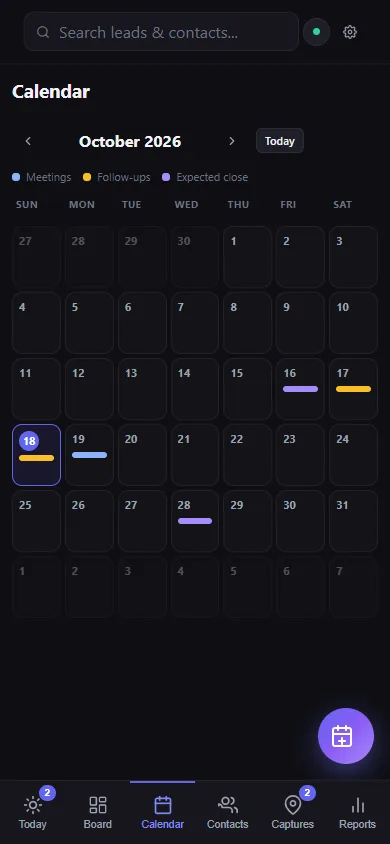
A month of meetings (blue), follow-ups (yellow) and expected close dates (purple). Use the arrows to change month and Today to come back.
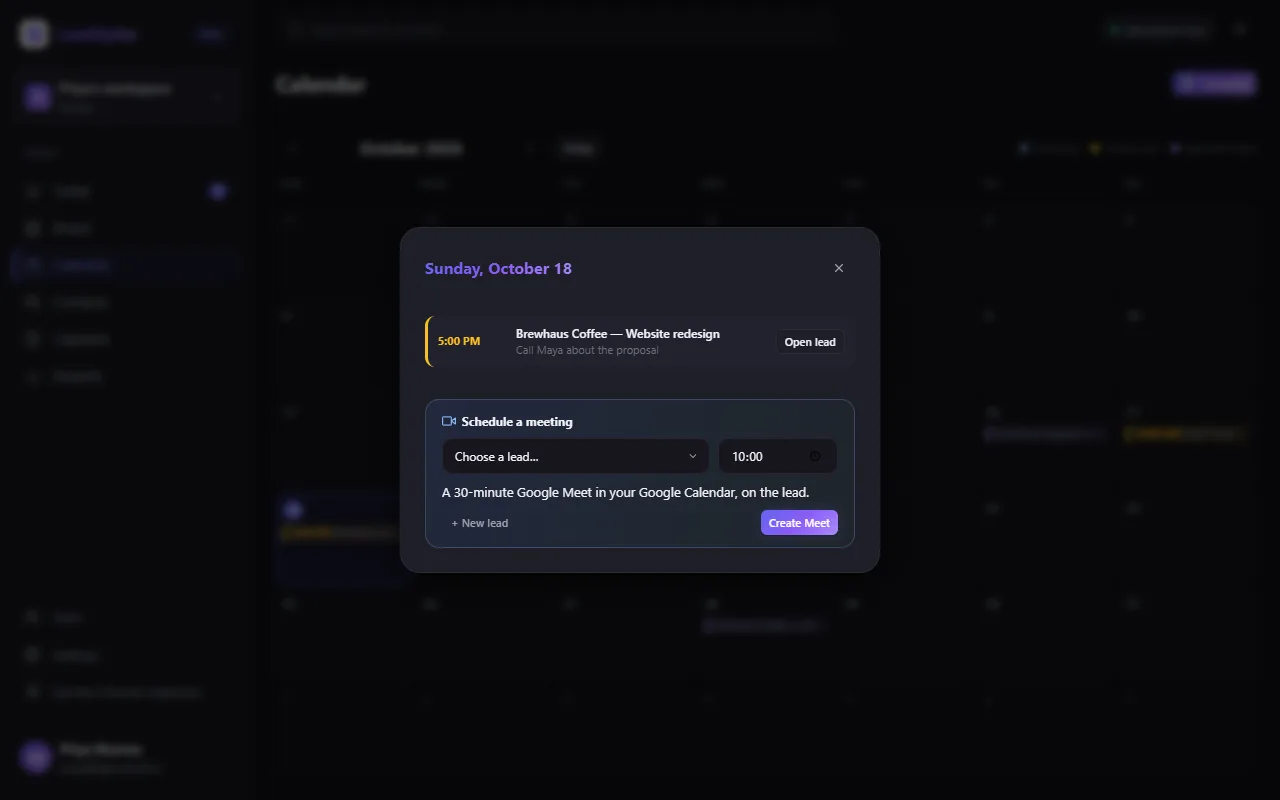
Click a day to see everything on it in a popup, with Join, Calendar and Open lead on each entry. Under Schedule a meeting, choose a lead and a time and press Create Meet to book a Google Meet on that day, or + New lead to add one first. The Schedule button on the Calendar tab opens the same popup.
Contacts and duplicates Free
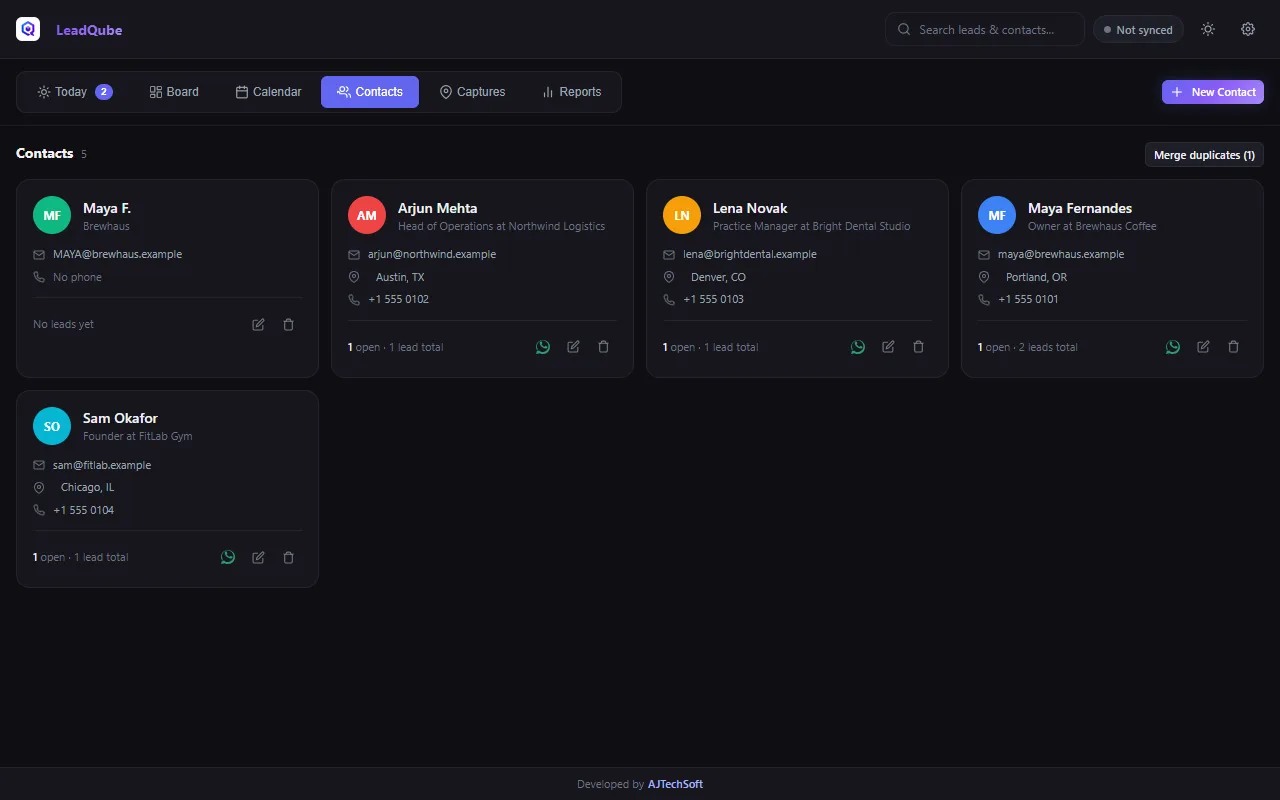
Every person or business you work with, with their company, email, phone, LinkedIn and how many leads they have. Click a contact to edit it; WhatsApp, edit and delete are on each card. + New Contact adds one.
Merging duplicates
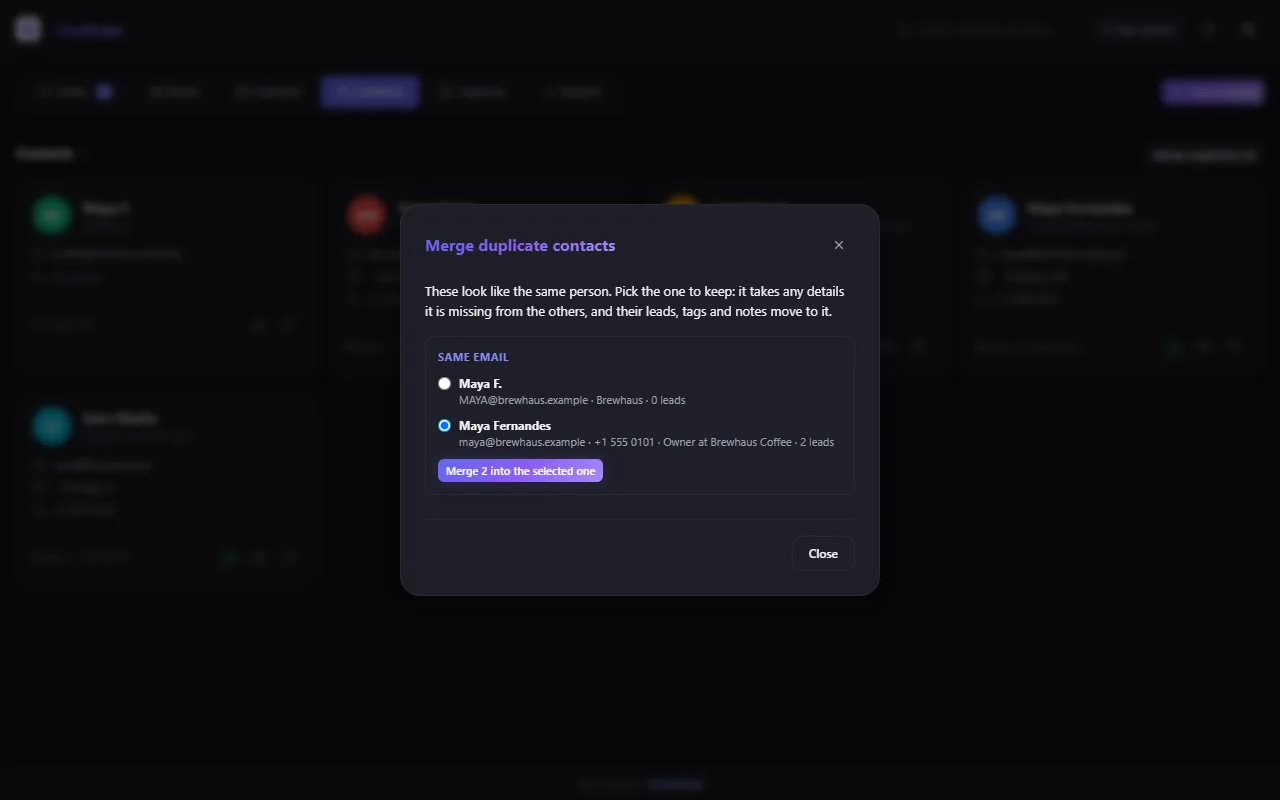
LeadQube spots contacts with the same email, phone number or LinkedIn profile (or the same name, when nothing contradicts it).
- Press Merge duplicates.
- For each group, pick the contact to keep.
- Press Merge. The one you keep takes any details it was missing, plus the others' tags, notes and leads; the others are deleted.
Capturing leads Free
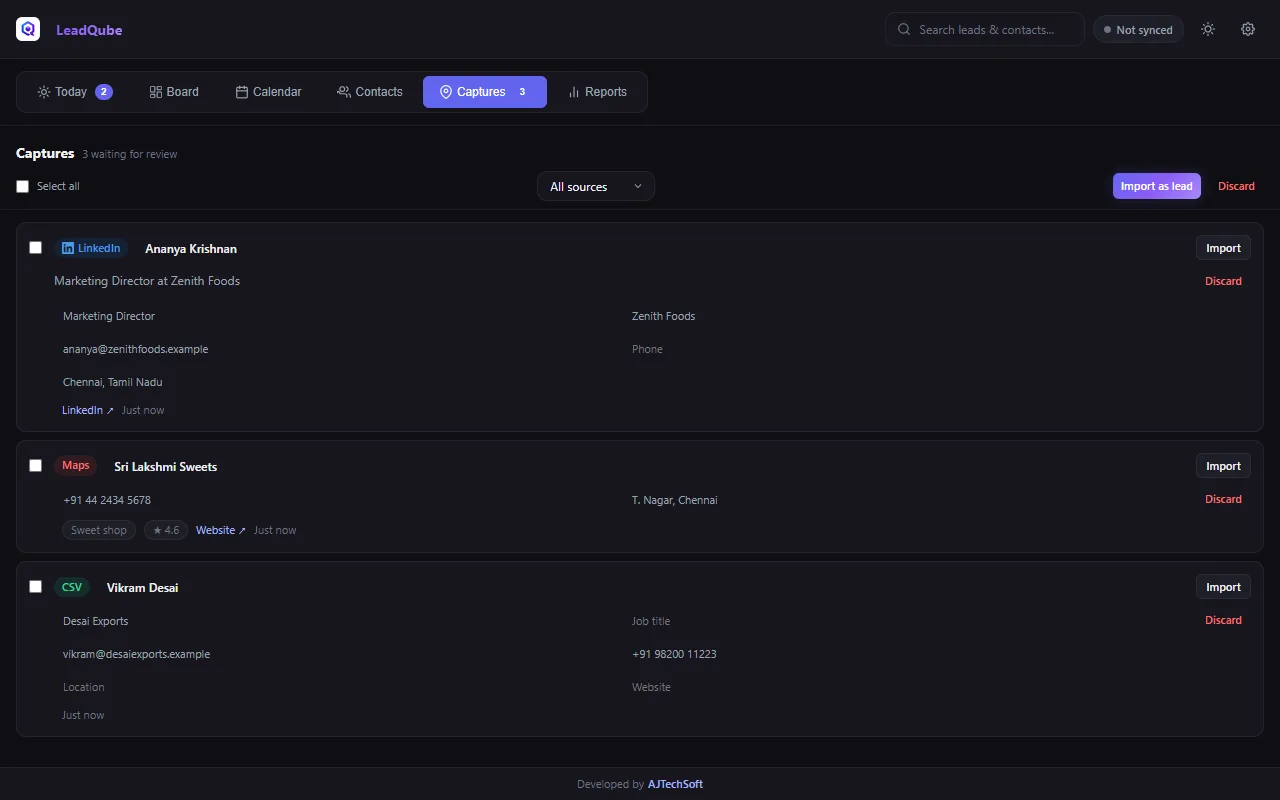
Leads you capture go to Captures first, so you can check them before they reach your board.
From LinkedIn
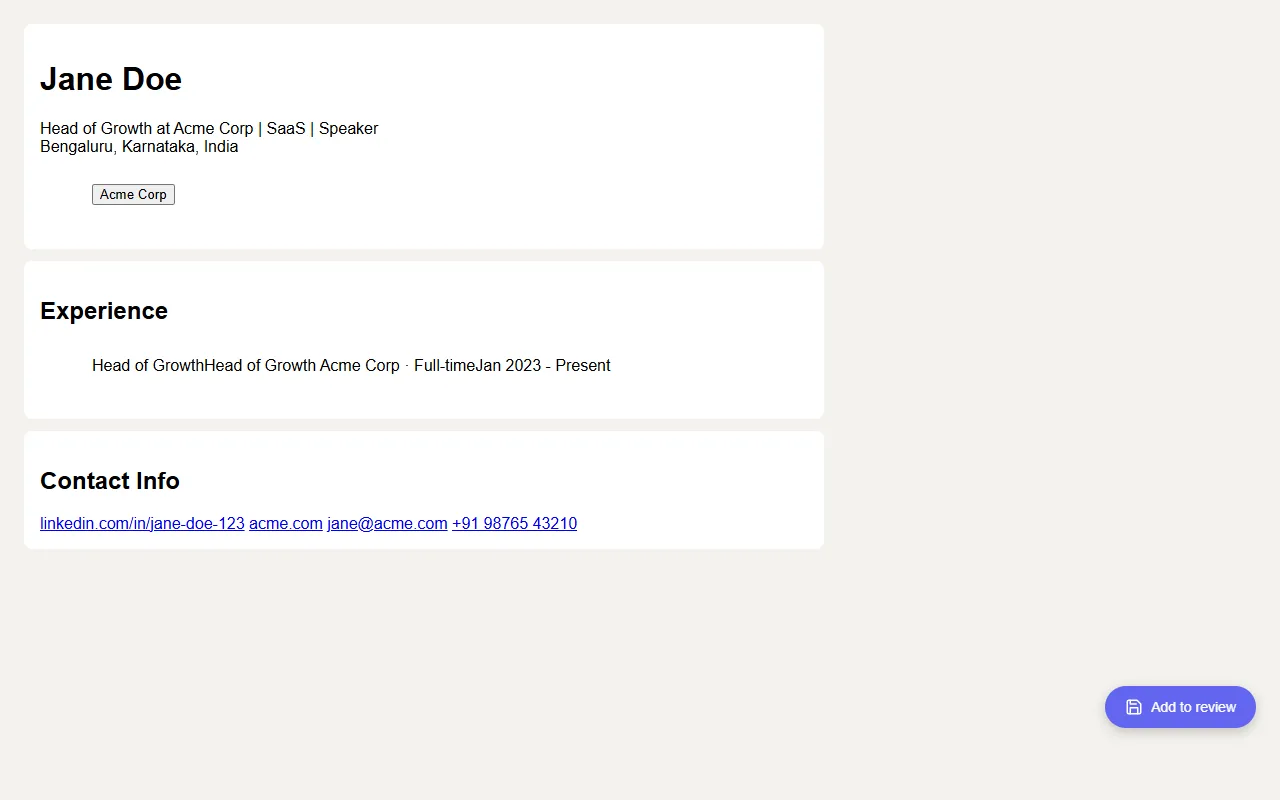
- Open someone's profile. To include their email and phone, open Contact info first.
- Press the LeadQube button at the bottom right: Add to review.
- On a people search, Capture visible people takes everyone on the page.
From Google Maps
Search Google Maps for a business or a category (for example "bakeries in Chennai"). Open a business and press Add to review, or press Capture visible results to take the whole list: name, phone, address, website, category and rating.
From a spreadsheet (CSV)
In Settings → Import & export → Import a lead list, choose a CSV file from Excel, Google Sheets or another CRM. Columns are recognised by name (Name, Company, Email, Phone…); Download a sample shows the format.
Reviewing captures
Open the Captures tab. Correct anything in place, then Import (one) or tick several and Import as leads. Each becomes a contact and a lead in the first stage; a known contact is reused rather than duplicated. Discard drops it.
Google Sheet sync Free
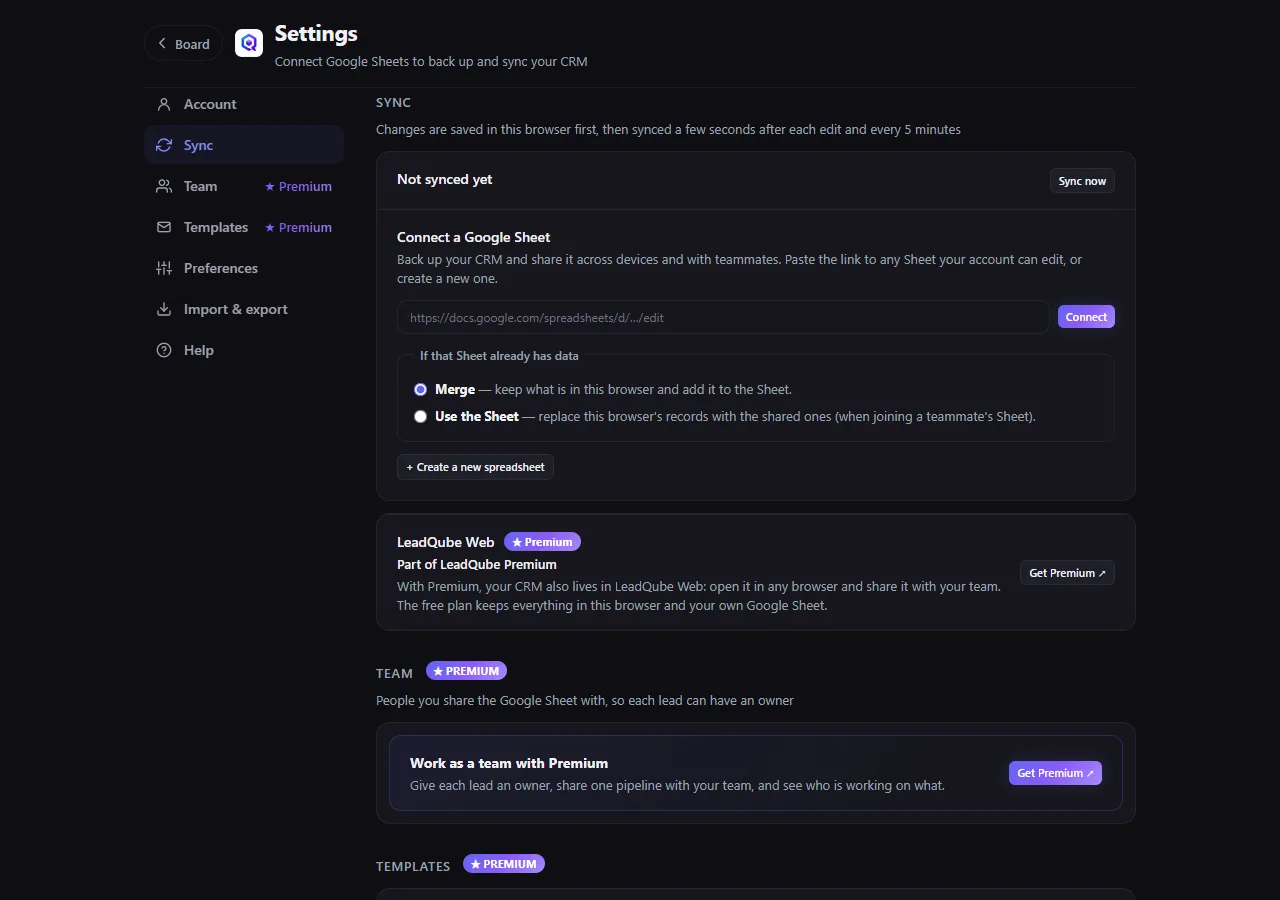
Back up your CRM and share it with teammates through a Google Sheet in your own Google account.
- Open Settings → Sync and sign in with Google.
- Paste the link of a Sheet you can edit and press Connect, or press Create a new spreadsheet.
- If the Sheet already has data, choose Merge (keep both) or Use the Sheet (when joining a teammate's Sheet).
Changes are saved in your browser first and synced a few seconds after each edit, and every 5 minutes. Edits made in the Sheet come back on the next sync.
Settings Free
Open Settings with the gear at the top of the board. Settings opens in the same tab; Board at the top takes you back.
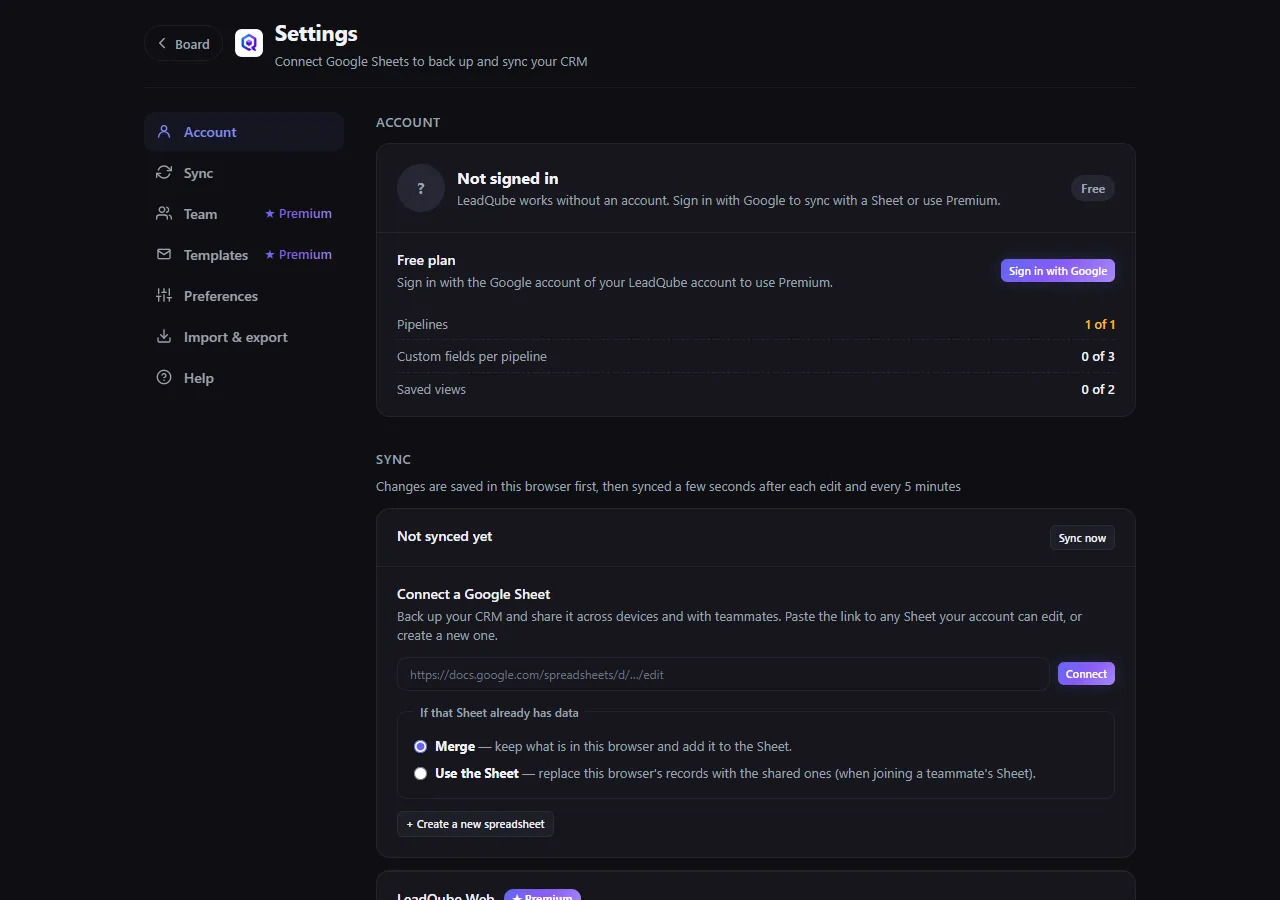
- Account: sign in with Google, your plan, and Check again after buying Premium.
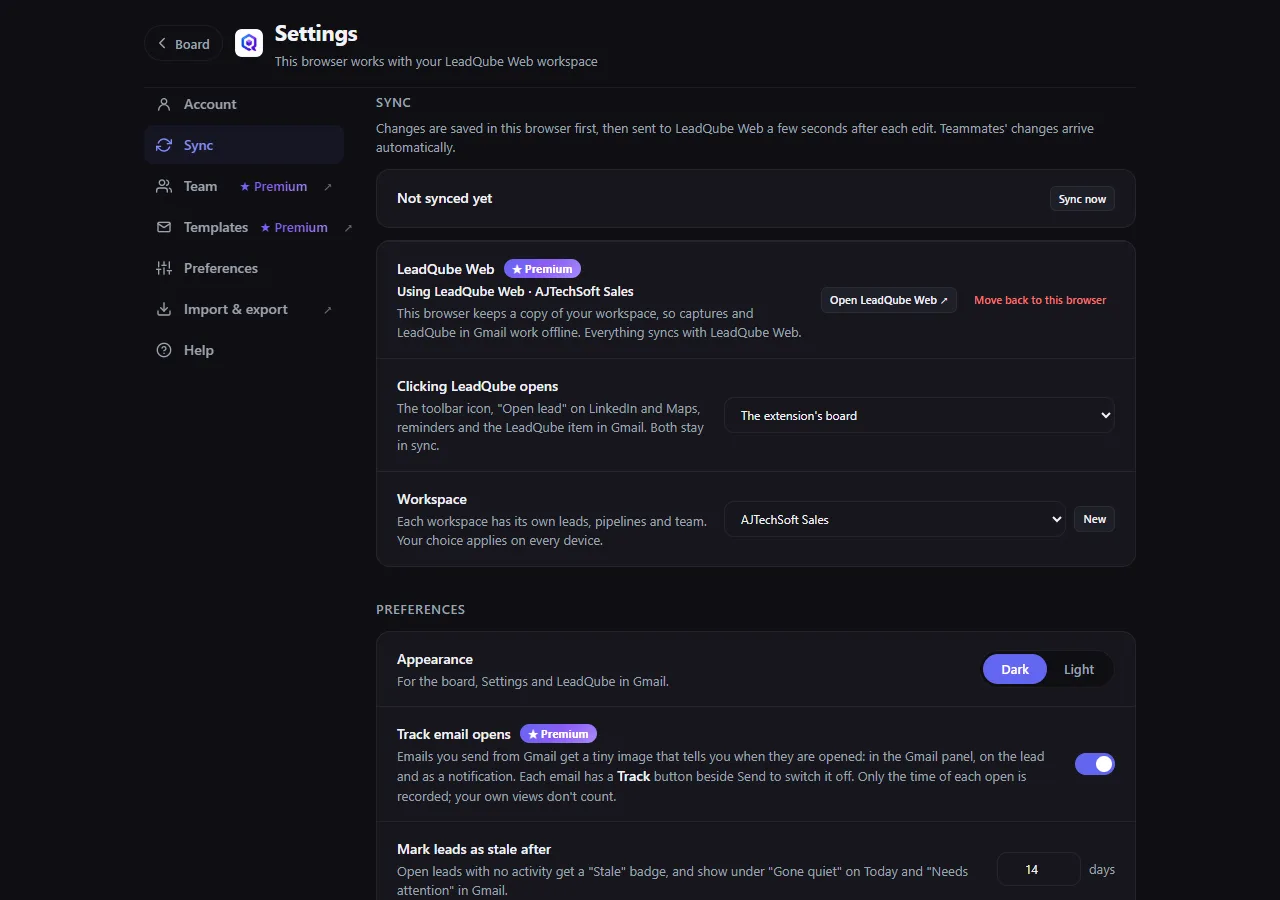
- Sync: your Google Sheet, or LeadQube Web with Premium.
- Preferences: dark or light appearance, and after how many days a quiet lead counts as stale.
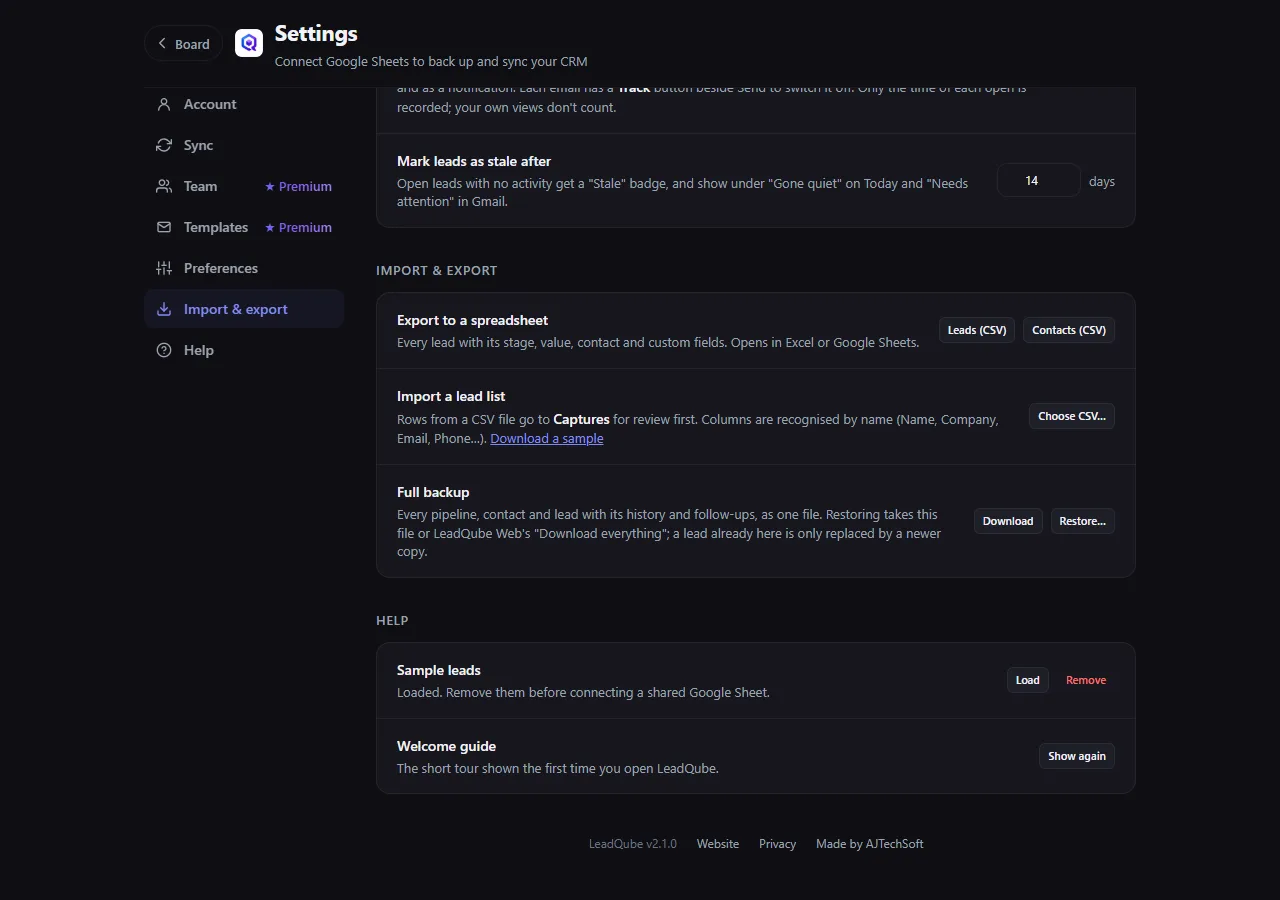
- Import & export: export leads or contacts to CSV, import a lead list, and Full backup (download everything as one file, and restore it).
- Help: load or remove the sample leads, and see the welcome guide again.
LeadQube in Gmail Premium
Sign in to LeadQube (Settings → Account) with the same Google account as your Gmail. Then, in Gmail:
The thread panel
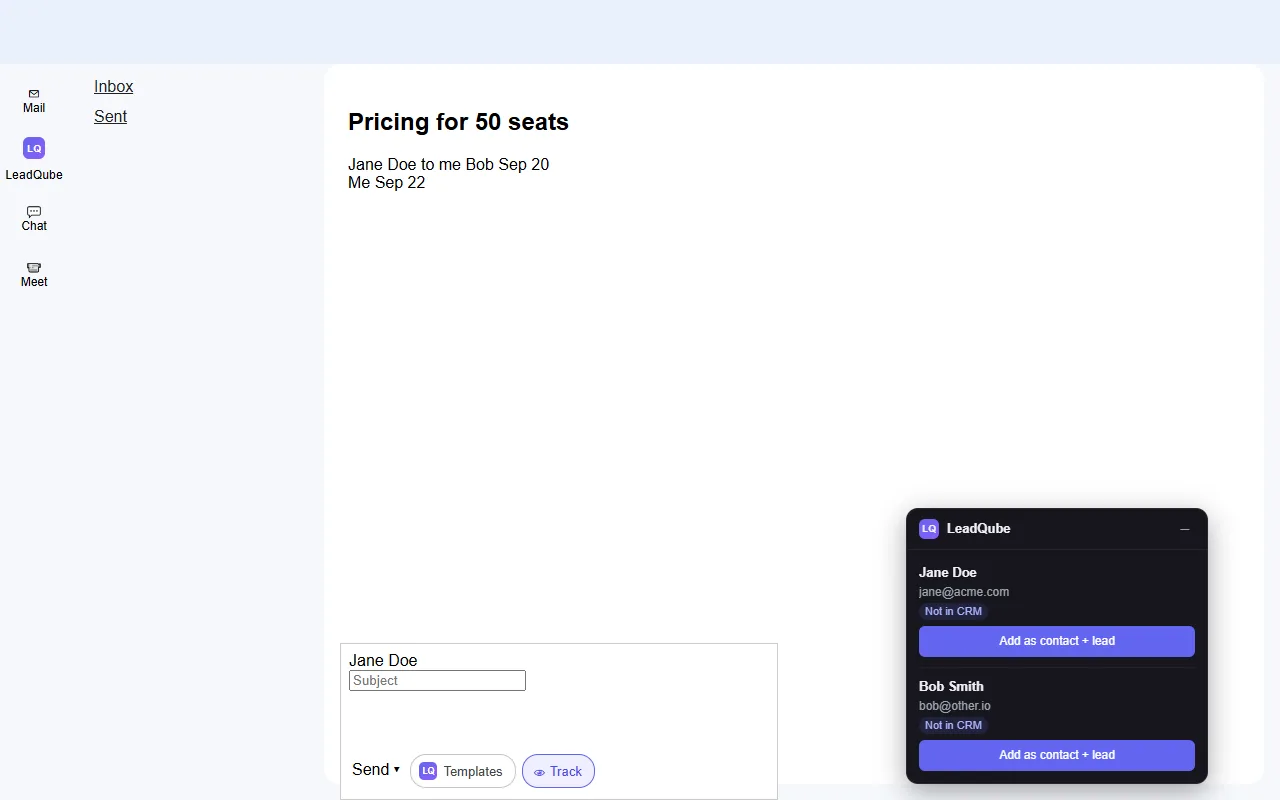
Open any email. The LeadQube panel shows the people in the thread: their contact, their leads and their stage. You can Add as contact + lead, Link thread to a lead, change its stage, and set Remind me if no reply (LeadQube reminds you if nobody answers within the days you choose, and clears it when a reply arrives).
Templates in compose
In any new email, reply or forward, press Templates beside Send and pick one. It is filled in for the first recipient: their name, company and lead.
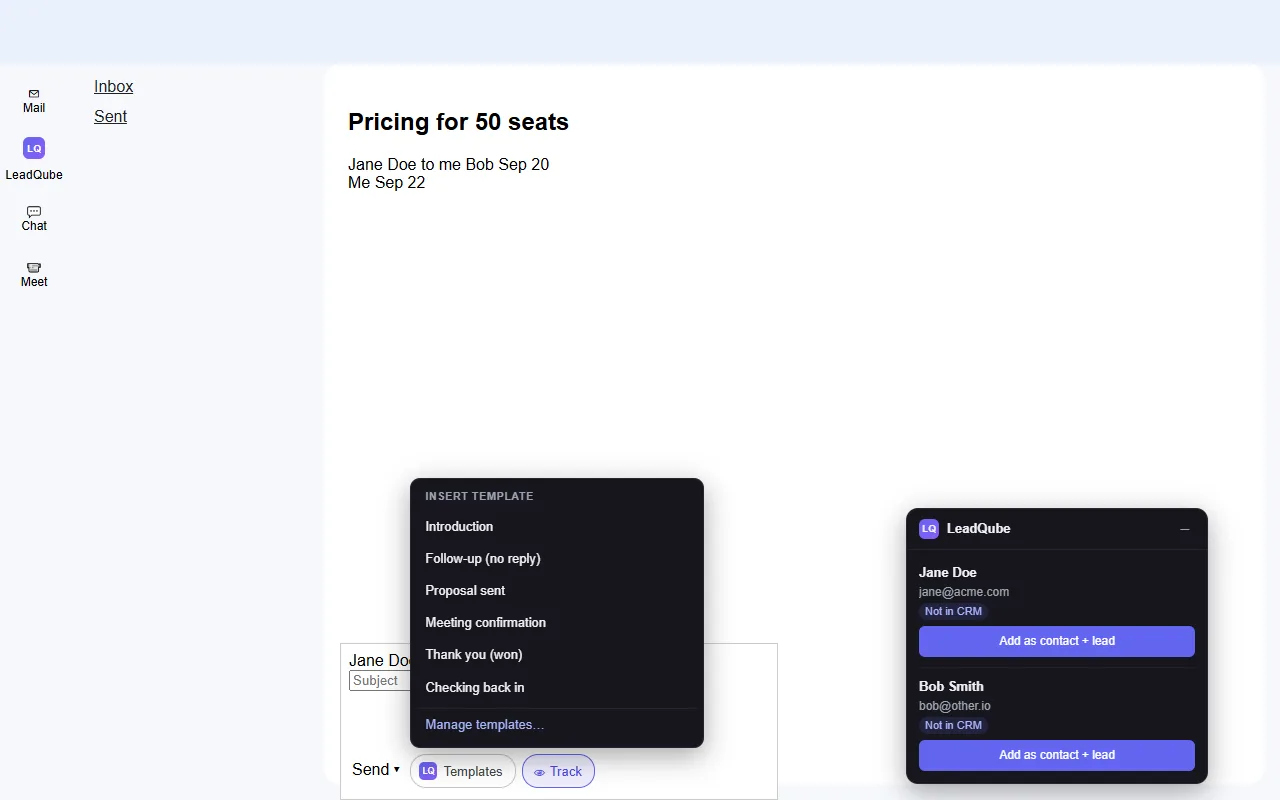
LeadQube inside Gmail
LeadQube has its own item in Gmail's left rail (beside Mail, Chat and Meet). It opens your pipeline, Today and contacts right inside Gmail.
Email open tracking Premium
See when your email is read. The 👁 Track button beside Send is on by default; press it to send one email without tracking. Turn the default off in Settings → Preferences → Track email opens.
- The Gmail panel shows "Opened 2 times · last today 10:42" for the thread.
- A lead whose email was opened shows 👁 with the count on its card.
- Chrome tells you when a tracked email is opened: a good moment to follow up.
Your own views don't count. Only the time of each open is recorded, nothing about the reader. Email apps that block images don't report opens, and some (Apple Mail) may report one as soon as the email arrives.
Email and WhatsApp templates Premium
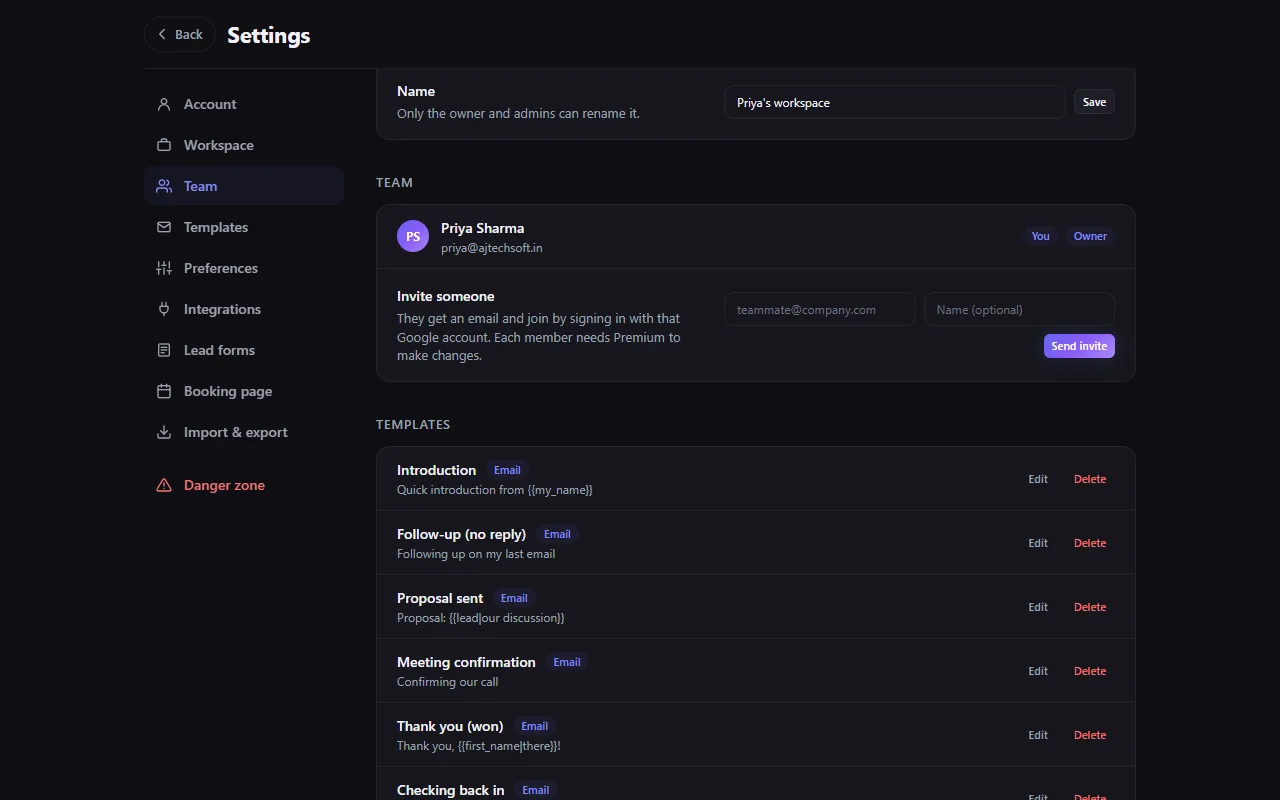
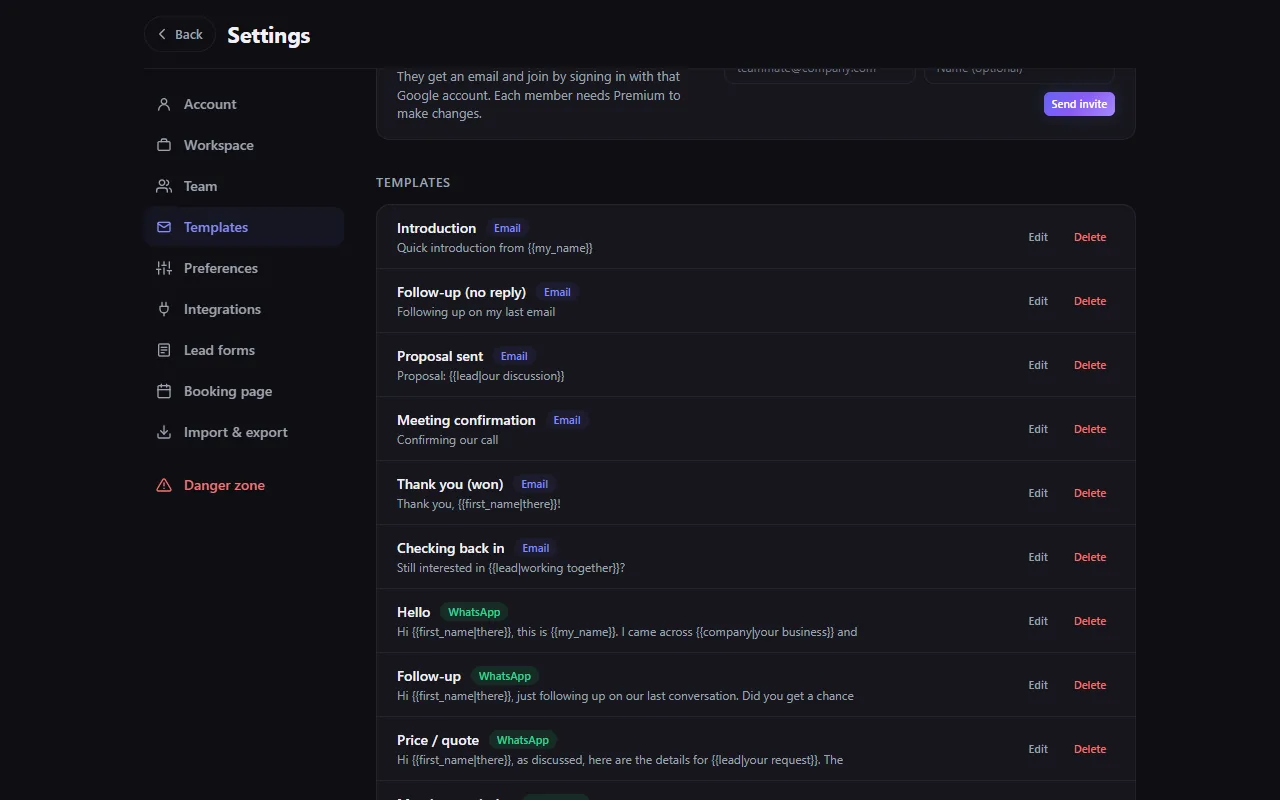
In Settings → Templates, press Add starter templates for 6 ready-made emails and 5 WhatsApp messages, or New template to write your own. Merge fields such as {{first_name}} and {{company}} are filled in for each person; add a fallback with a bar: {{first_name|there}}.
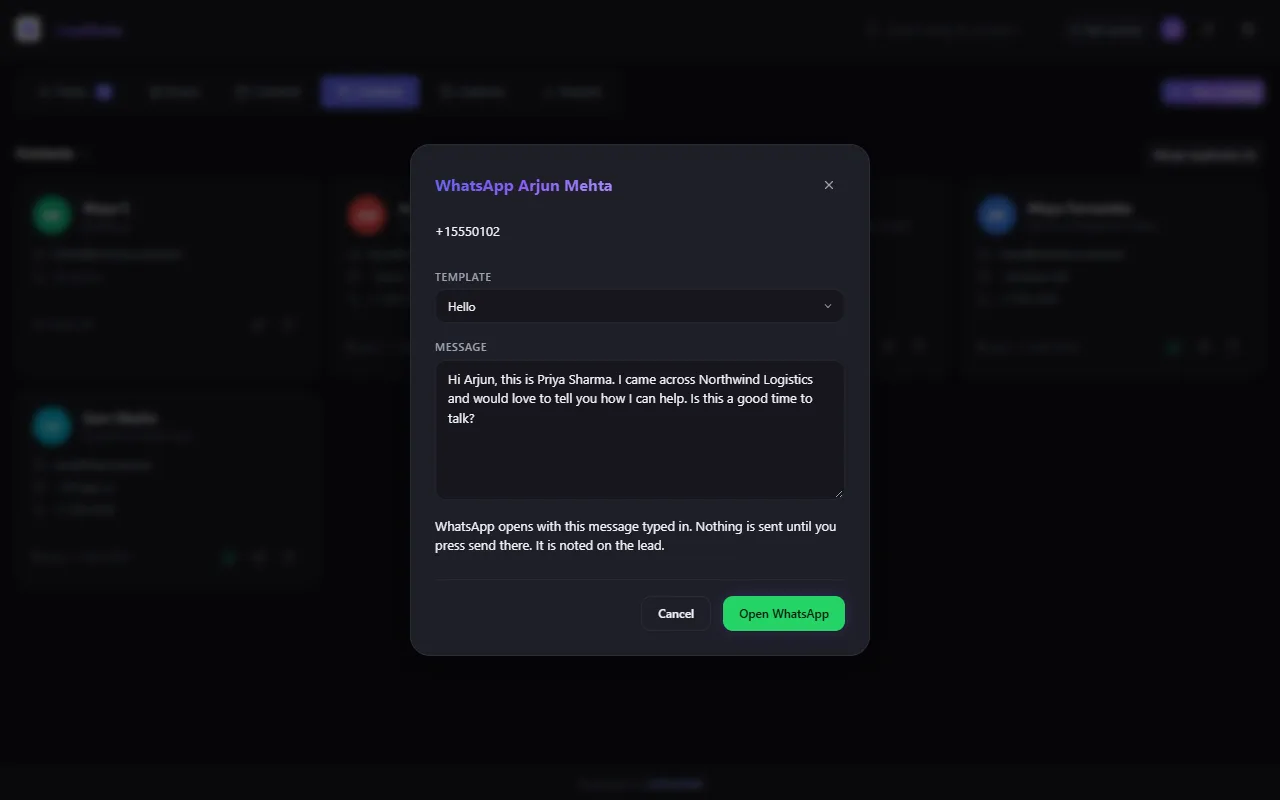
WhatsApp: press the green WhatsApp icon on a lead or contact, pick a template, check the message and press Open WhatsApp. WhatsApp opens with the message typed in; nothing is sent until you press send there. The lead's timeline notes it.
Mail merge: on the board, Email these leads makes a Gmail draft from a template for every lead in the current view, ready for you to check and send.
Lead scoring Premium
Every open lead gets Hot, Warm or Cold, with a score out of 100, from its own history: how far along the pipeline it is, how recently and how often you worked on it, emails this week and opens, a meeting coming up and its priority (a missed close date or going quiet count against it). Point at the score to see why. The list view can be sorted by score.
Needs attention Premium
The Attention tab (press 7) lists the open leads that are slipping, worst first, each with the reasons in plain words:
- A follow-up is overdue, or the expected close date has passed.
- A meeting happened and nothing was logged after it, so no one followed up.
- Nobody has touched the lead for as long as your "gone quiet" setting (14 days unless you changed it) and no follow-up is booked.
- No follow-up is booked, 30 days or more in the same stage, or no expected close date on a lead with a value.
A lead with a follow-up booked for later is not listed for being quiet: it is taken care of. Urgent and high-priority leads move up. The number on the tab counts the urgent ones. Each row has Log call and Follow up tomorrow, and the lead's name opens it. Nothing is stored for this: it is worked out from each lead's own history every time you look.
Products on leads Premium
Keep a small catalogue of what you sell and put it on a lead, so its value is the total of what the customer is buying.
- Open a lead to edit it and press Manage products. Add each product with its name and price, then Save products. The catalogue follows your account to your other browsers and to LeadQube Web.
- In the lead's form, press + Add under Products. Type a product's name to pick it (its price is filled in), or type anything for a one-off item. Set the quantity, the price each and a % off if you give a discount.
- The lead's Value becomes the total and is locked while it has products. Remove the products to type a value by hand again.
The lead's details list its products, and Reports, the forecast and lead scoring all use the total. Prices are in the lead's own currency. If your Premium ends, the lead keeps the products it already had, and you can edit its value by hand again.
Reports and automations Premium
Reports shows your open pipeline, weighted forecast, win rate, a forecast by expected close month, lead sources and how leads move through the stages.
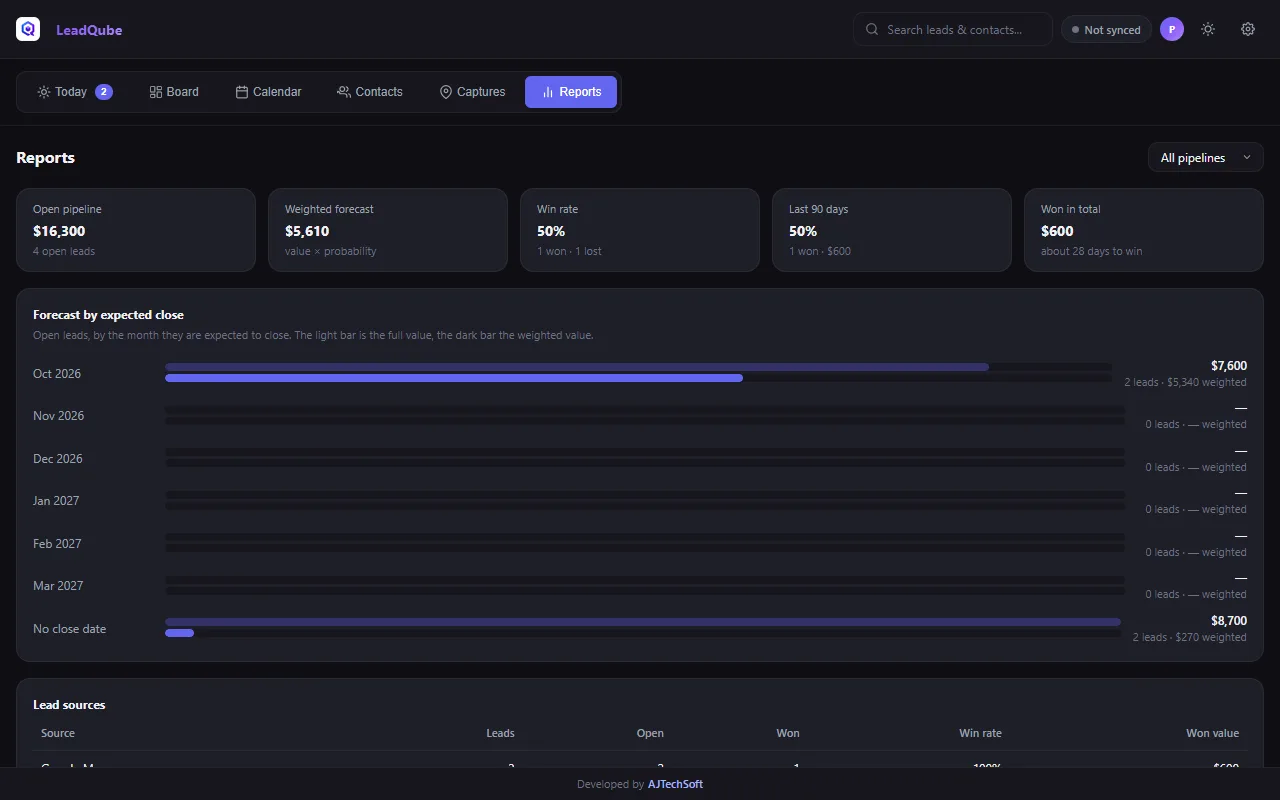
Monthly goal: on Reports, press Set a goal and enter how much you want to win each month, in one currency. The card then shows what you have won this month against it, how much is left and how many days remain, and a lighter part of the bar for open leads due to close this month (their value times their probability). It says whether you are on track. Only leads in the goal's currency count, and the card tells you how many were left out. The goal follows your account, so it is the same in LeadQube Web.
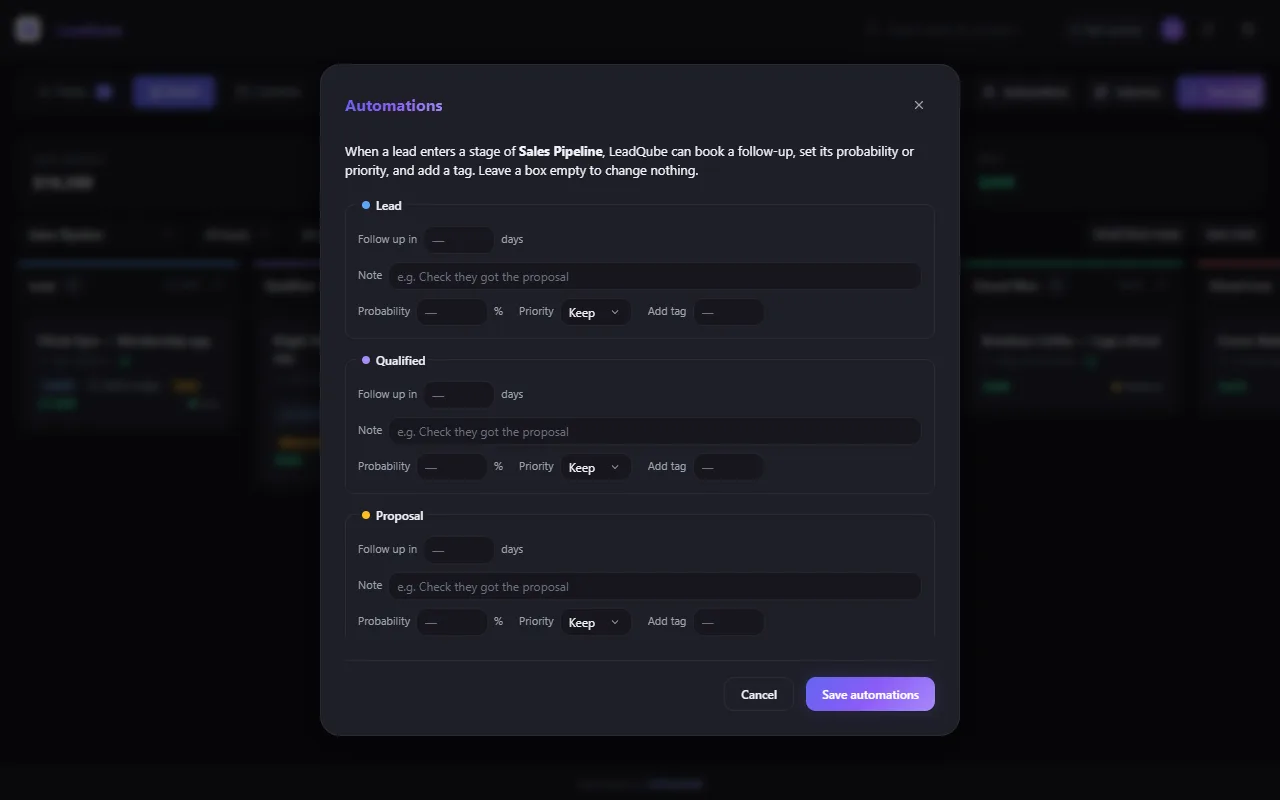
Automations (on the board): when a lead enters a stage, LeadQube can book a follow-up, set its probability or priority, and add a tag.
Premium also lifts the free limits (pipelines, custom fields, saved views) and adds lead owners: add your team in Settings → Team, give each lead an owner, and filter the board by owner.
Premium settings
On the free plan, Premium sections show what they add, with Get Premium. With Premium, they open.
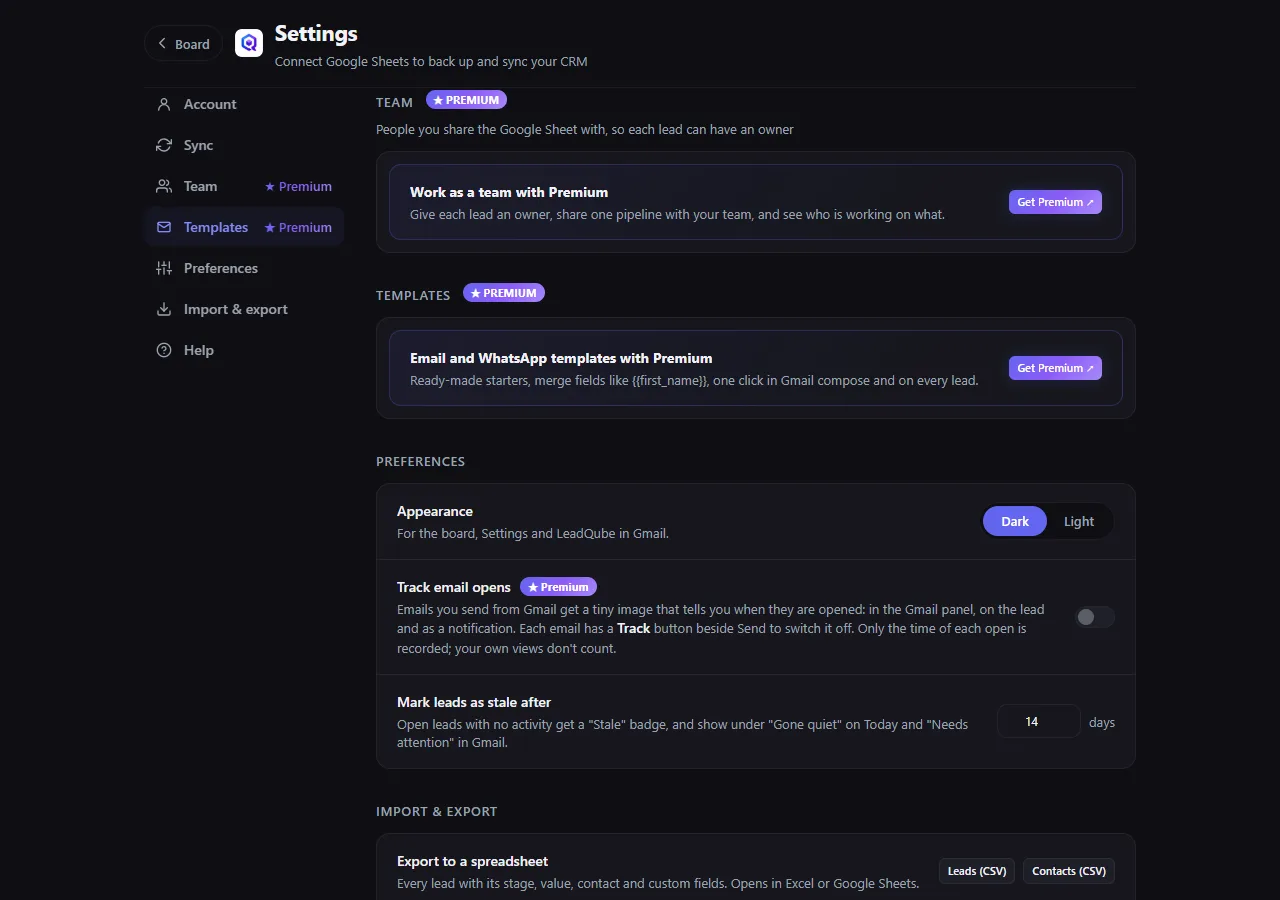
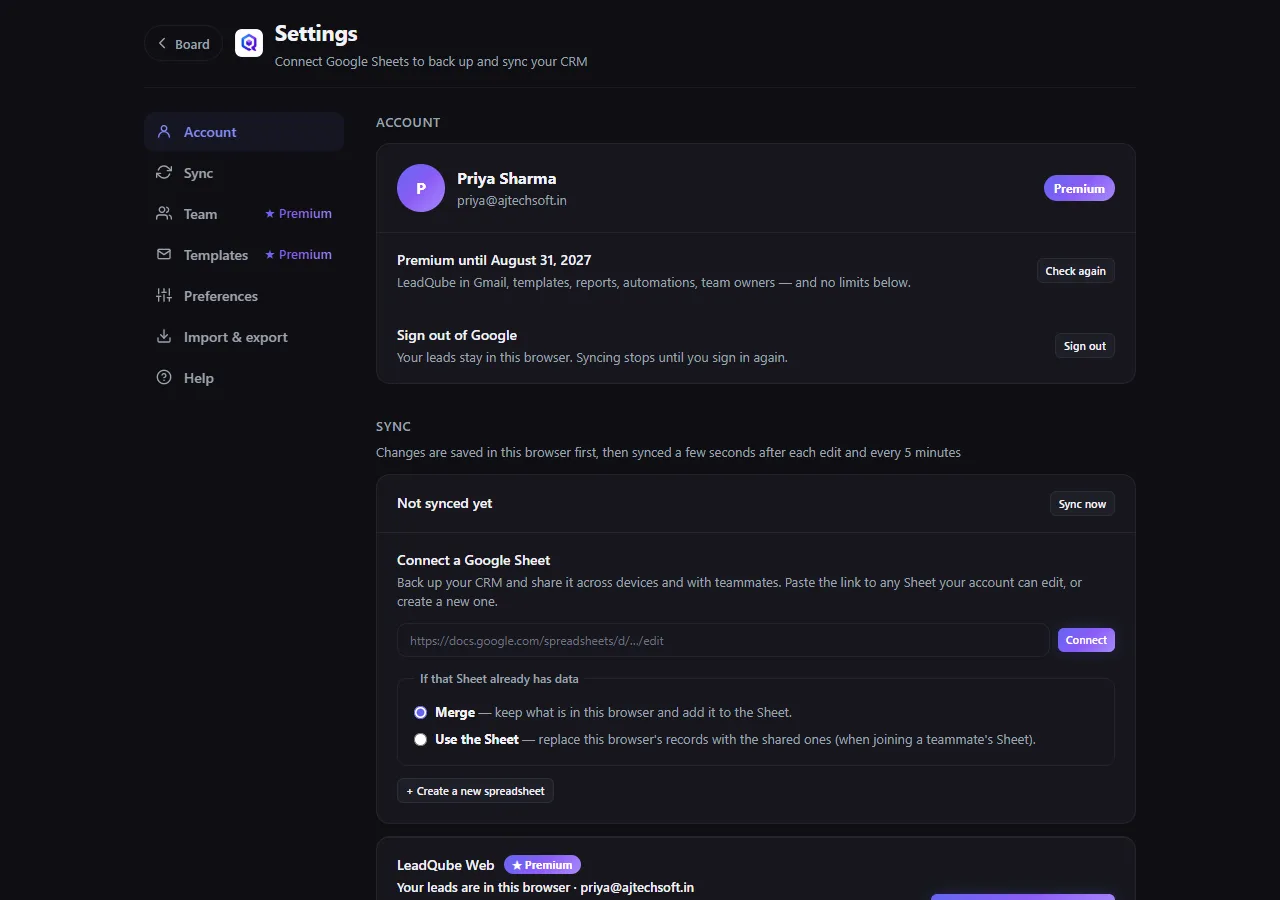
When the extension syncs with LeadQube Web, Settings → Sync shows your workspace and Clicking LeadQube opens: choose whether the toolbar icon, "Open lead" and reminders open the extension's board (the default) or LeadQube Web. Team, Templates and Import & export then open LeadQube Web's Settings (marked ↗), already signed in.
LeadQube Web: signing in Premium
LeadQube Web is your CRM in any browser, on any computer or phone, shared with your team: ajtechsoft.in/leadqube/app. Sign in with the Google account of your LeadQube account.
- Your leads from the extension: with Premium, the extension moves your leads to LeadQube Web by itself (or offers to, if you use a Google Sheet). After that, the extension and LeadQube Web stay in sync, and captures from LinkedIn, Maps and Gmail keep working in the extension.
- One sign-in: signed in to LeadQube Web, the extension needs no separate sign-in, and pages the extension opens in LeadQube Web are already signed in.
Working in LeadQube Web Premium
The menu on the left has the same screens as the extension: Today, Board, Calendar, Contacts, Captures and Reports, and they work the same way (see the extension sections above). The workspace switcher is at the top; Team, Settings and your account are at the bottom.
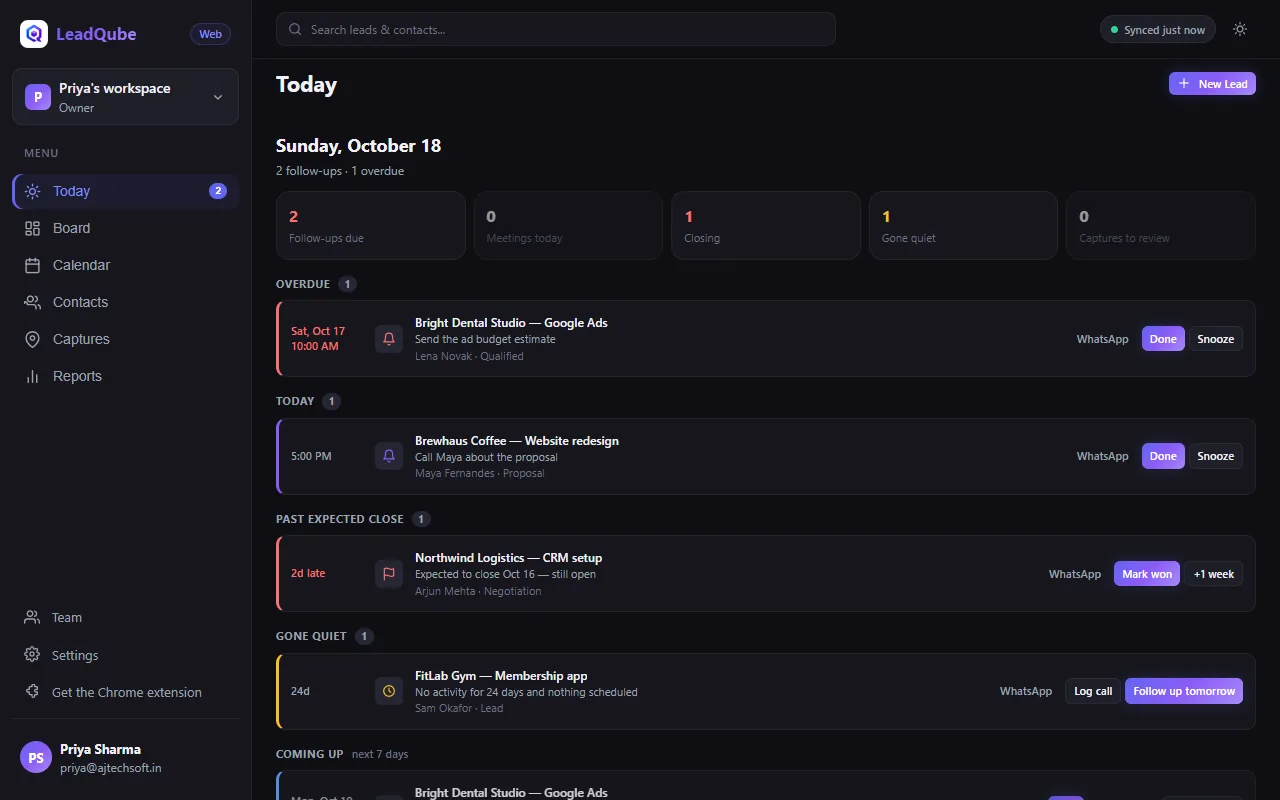
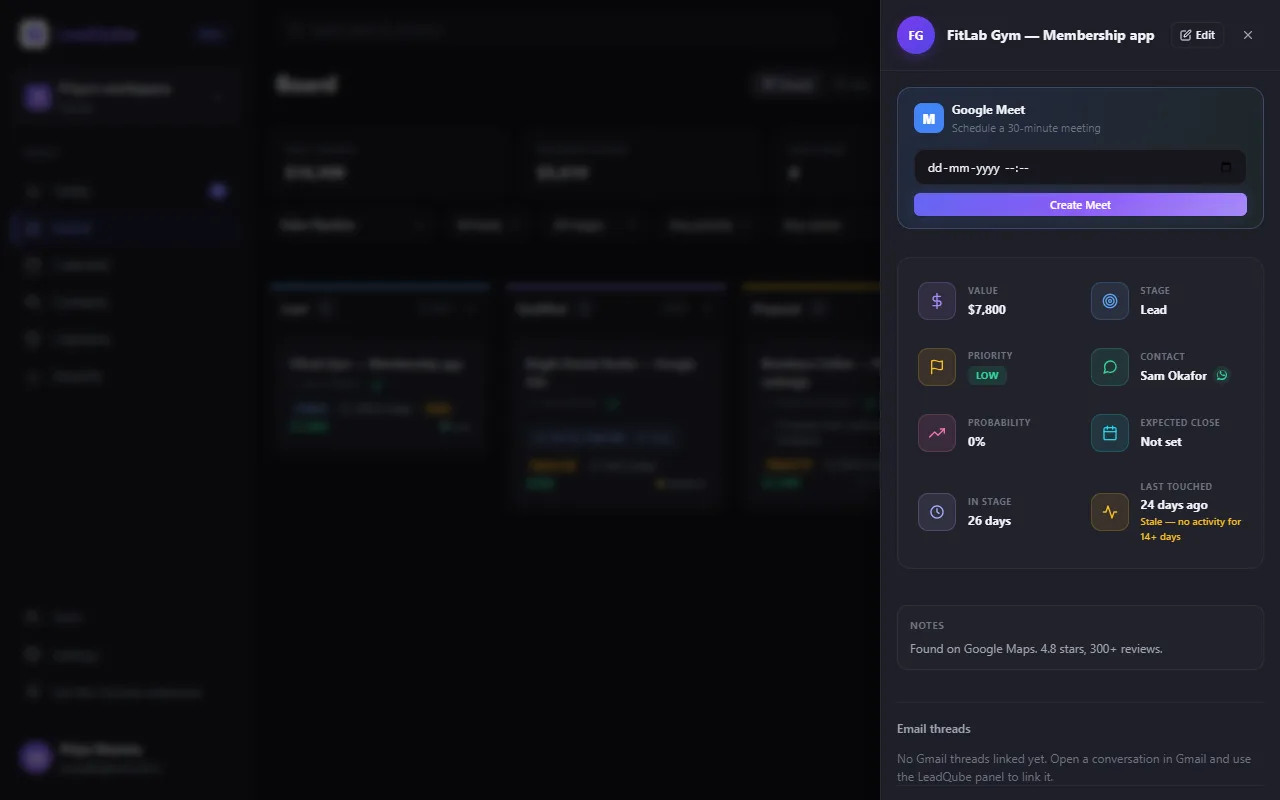
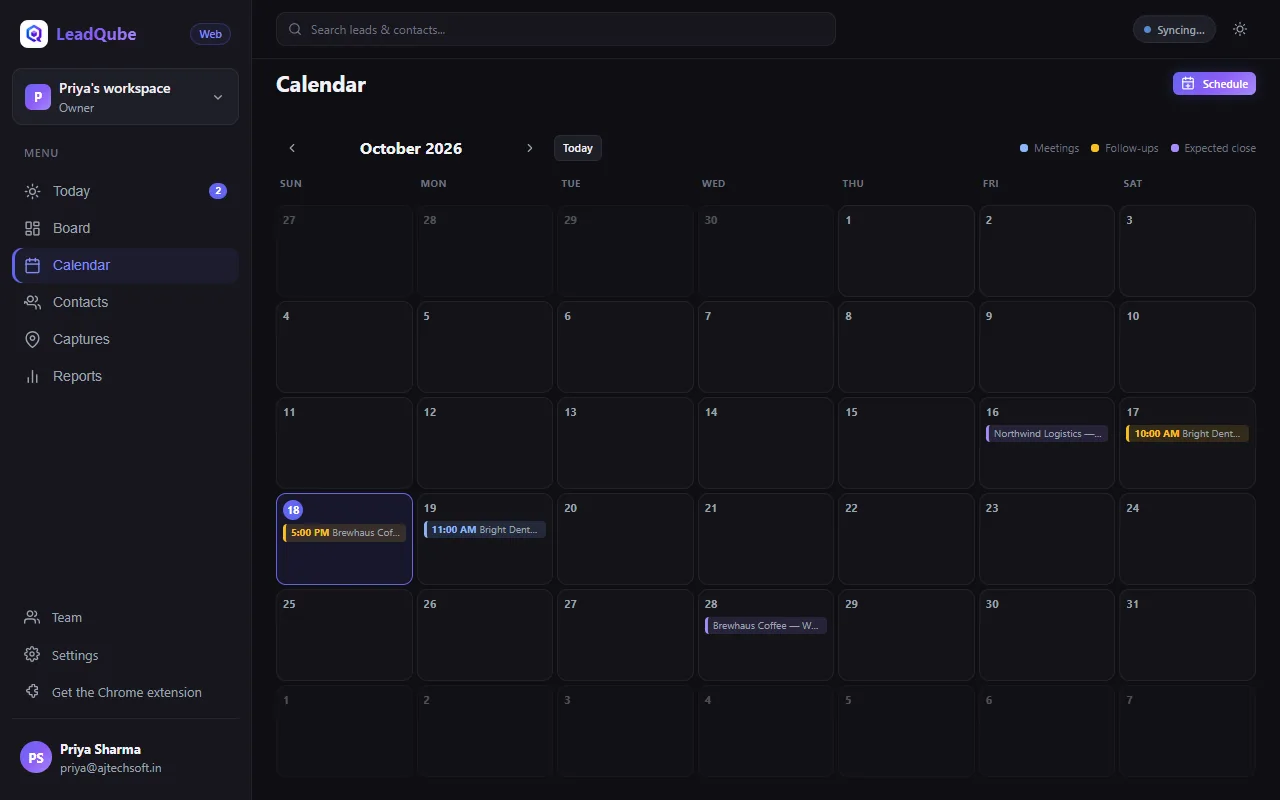
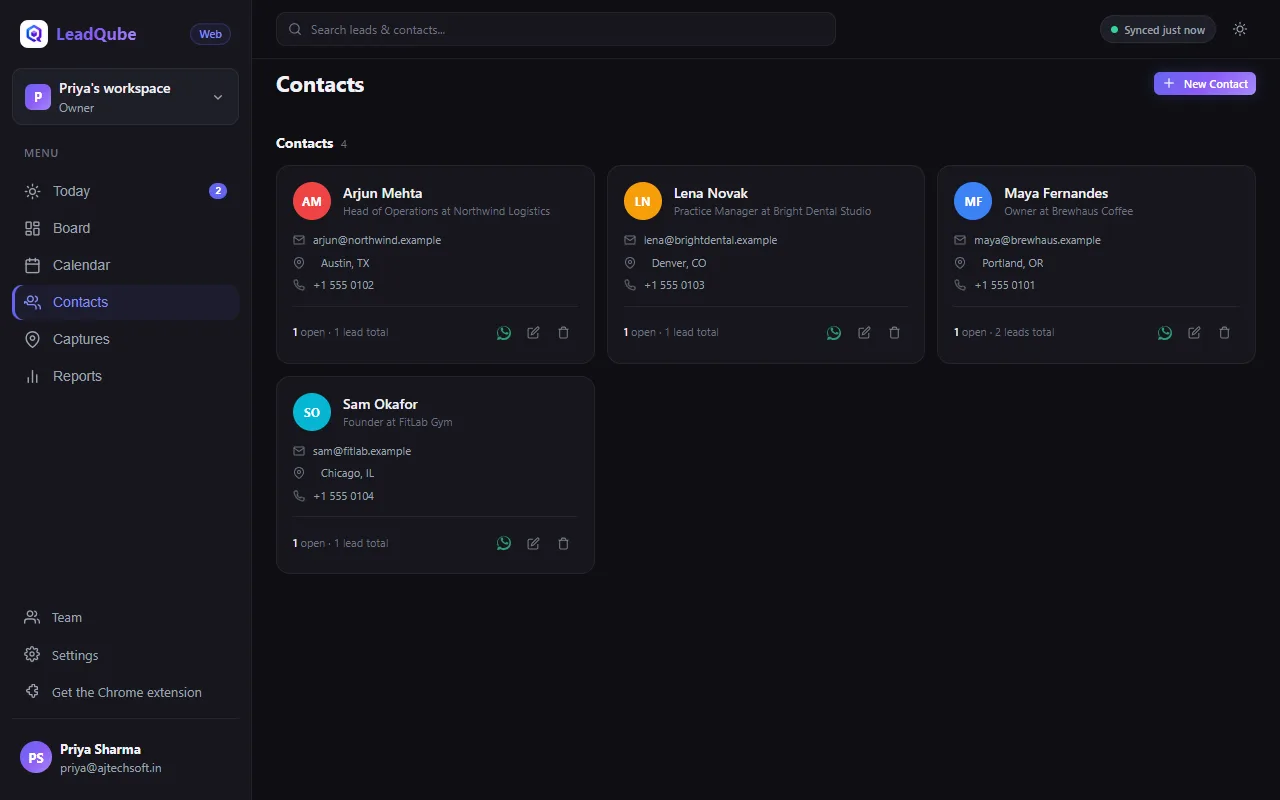
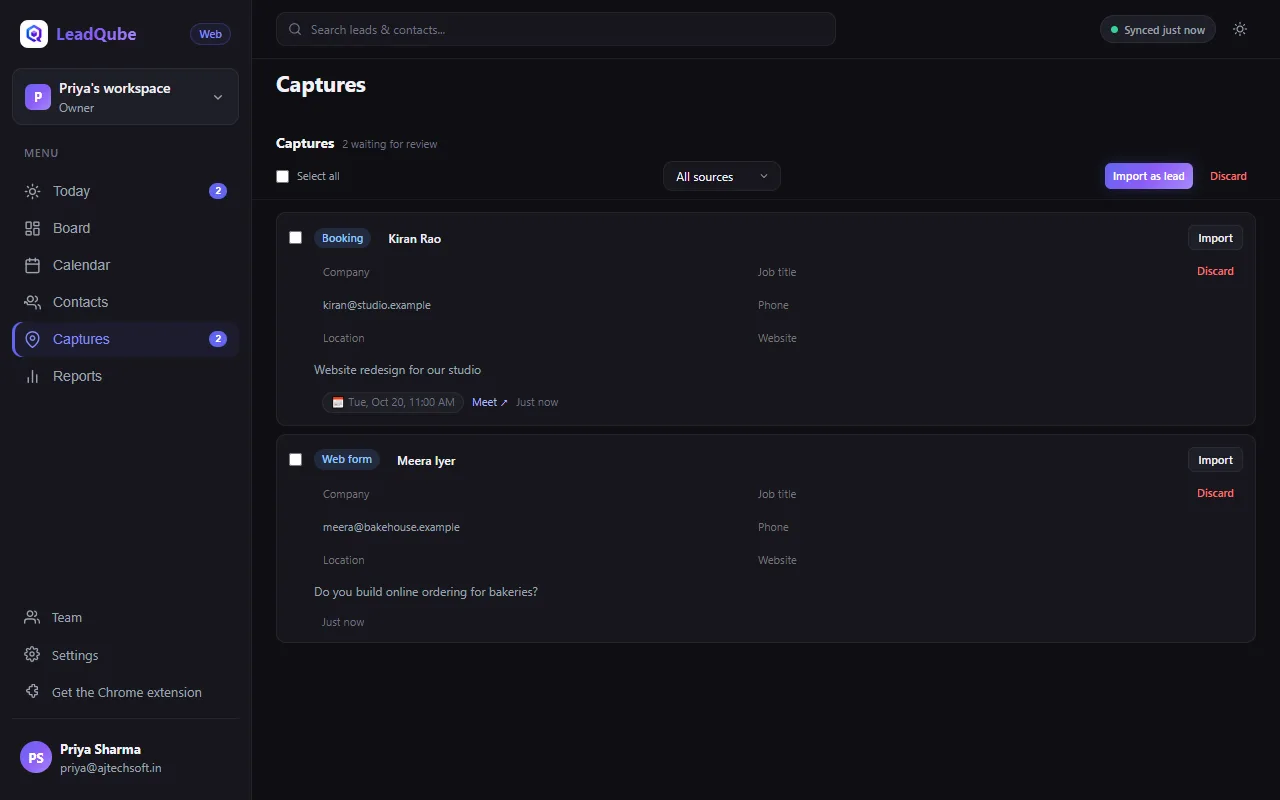
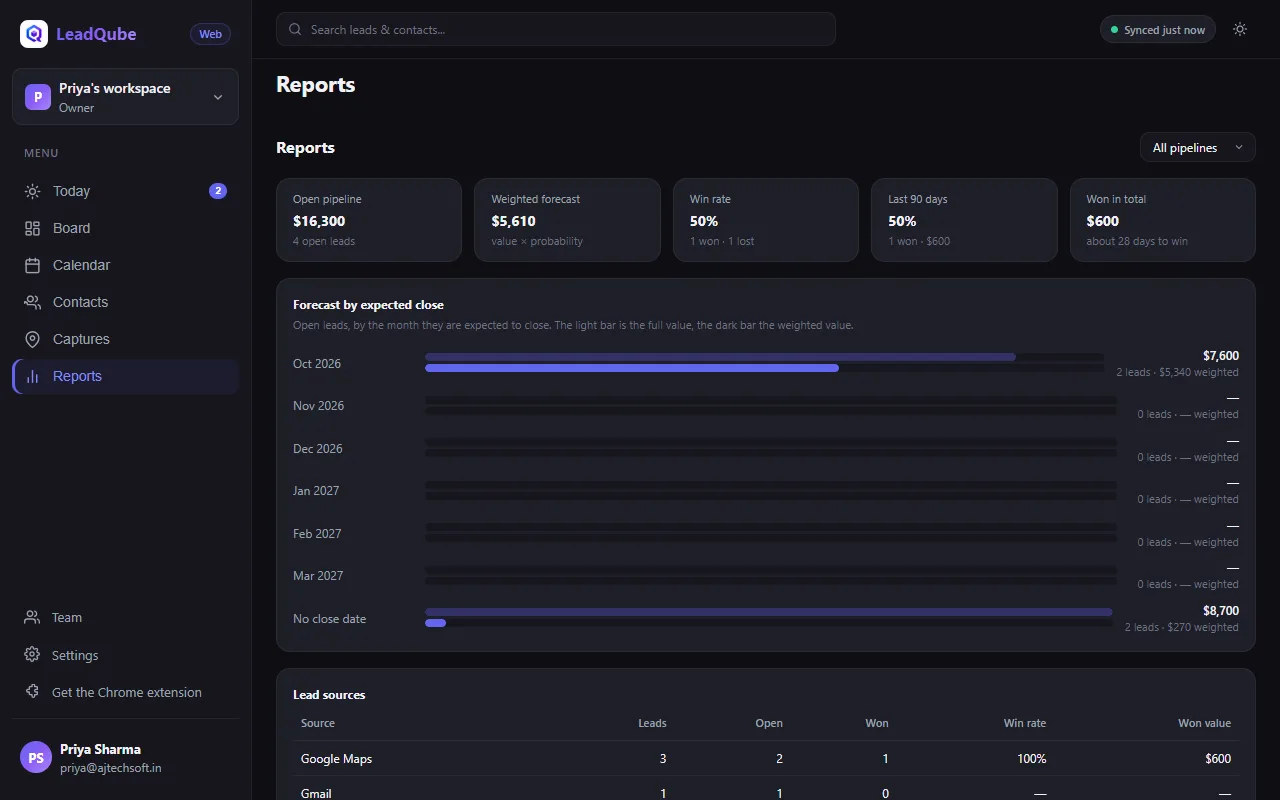
Reminders also reach you by email, so you don't miss a follow-up when your browser is closed. The address bar follows you (for example #lead/…), so you can bookmark a lead or send its link to a teammate.
On your phone Premium
Open LeadQube Web in your phone's browser. The sections are at the bottom; the round button adds a lead (or, on the Calendar, schedules a meeting). On the board, swipe sideways between stages; Filters and the ⋯ menu hold the rest.
Workspaces and team Premium
A workspace is one shared CRM: its leads, contacts, pipelines and team. You start with your own; make more (for example one per client) from the workspace switcher → New workspace, and switch between them there.
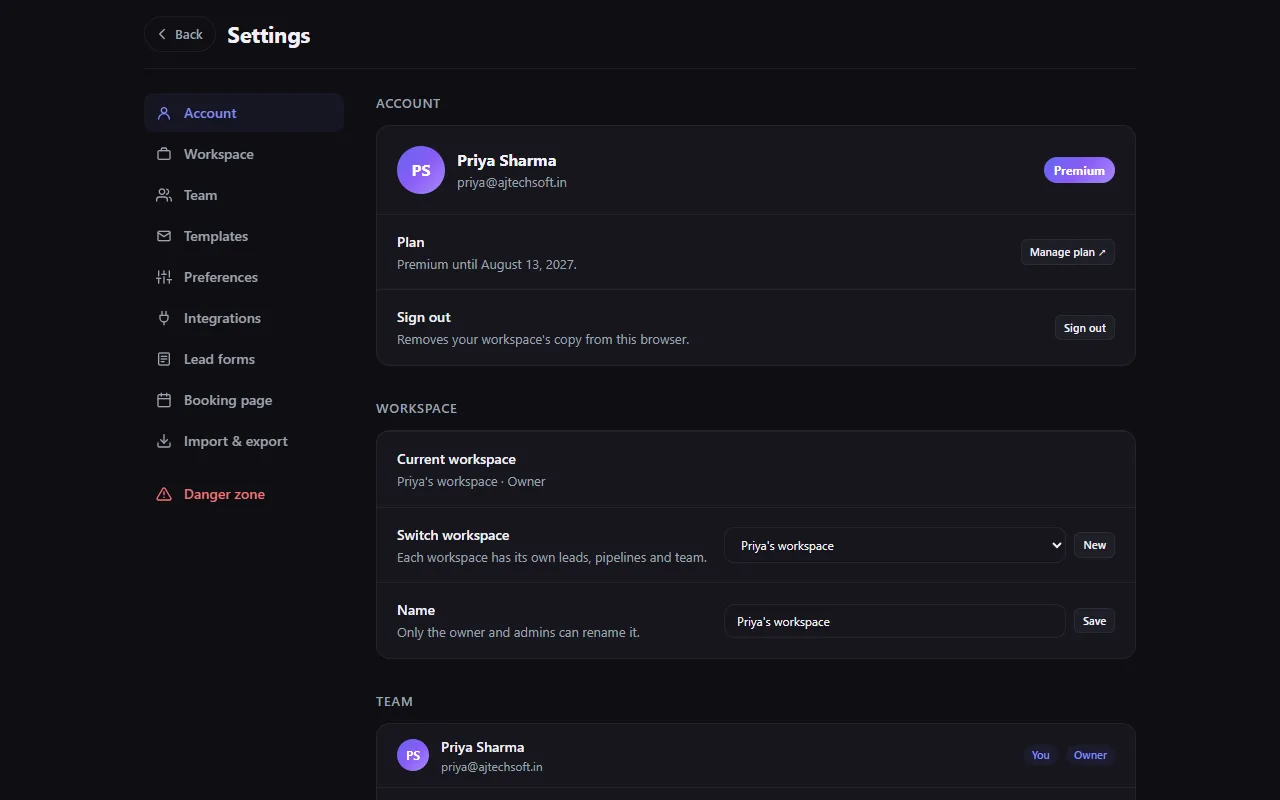
Invite your team in Settings → Team: enter their email and press Send invite. They get an email, sign in with that Google account and join. Inviting needs a Team plan for the workspace, and only the workspace owner invites, up to the number of seats on the plan (open invitations count). If the email can't be sent, the screen says so: the invitation is still saved, and they see it when they sign in to LeadQube Web with that account.
Members have every Premium feature while they are in the workspace, and work on its leads like anyone else. They can't invite people or create workspaces of their own. The owner can make a member an admin and remove people, which frees their seats.
Google Calendar and Tasks Premium
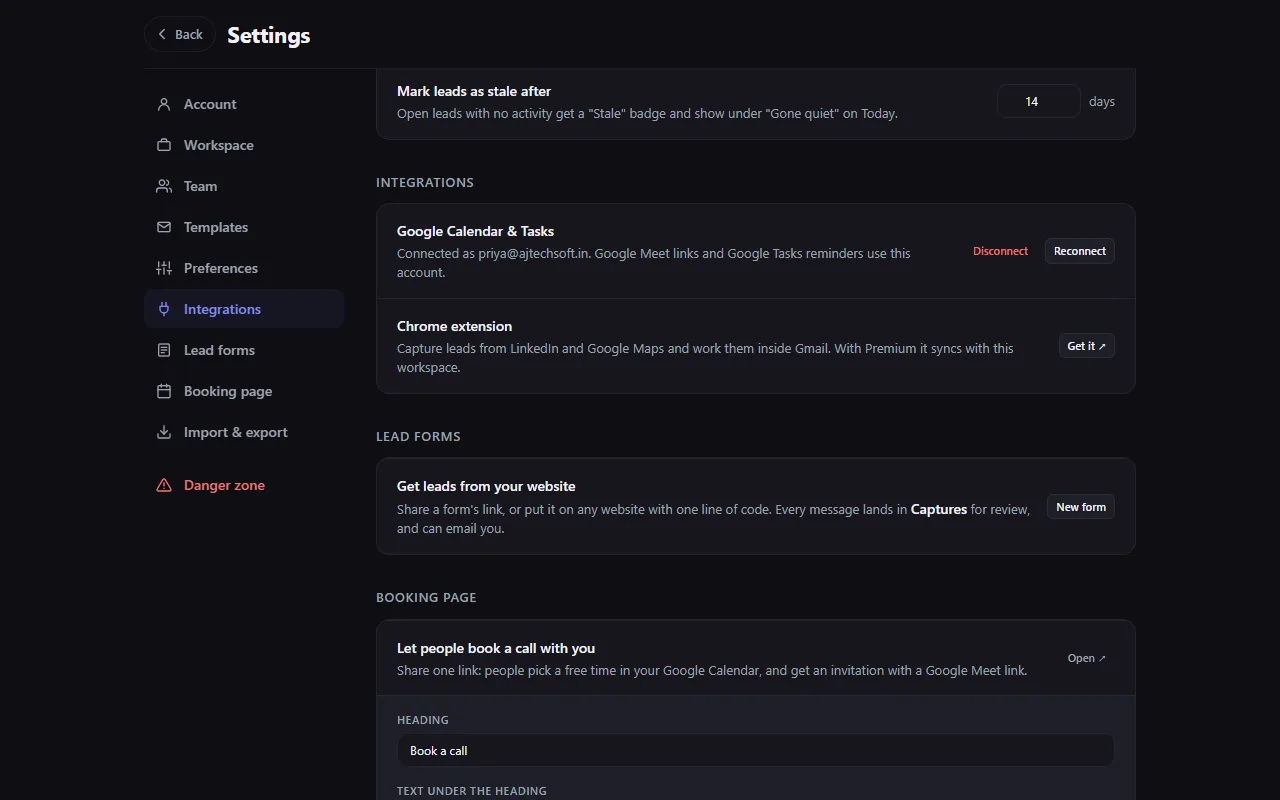
To create Google Meet links, mirror follow-ups to Google Tasks and use the booking page from LeadQube Web, connect your Google account once:
- Open Settings → Integrations.
- Press Connect Google, choose the Google account of your LeadQube account, and press Allow.
- It shows "Connected as you@…". Disconnect removes the connection at any time.
Lead forms Premium
A contact form for your website, Instagram bio or WhatsApp status. Every message lands in your Captures.
- In Settings → Lead forms, press New form.
- Give it a name, a heading and text; choose which fields to ask for (email, phone, company, message: off, optional or required), the button, colour and thank-you message.
- Press Save form. Copy its link to share it, or its embed code to put it inside your website.
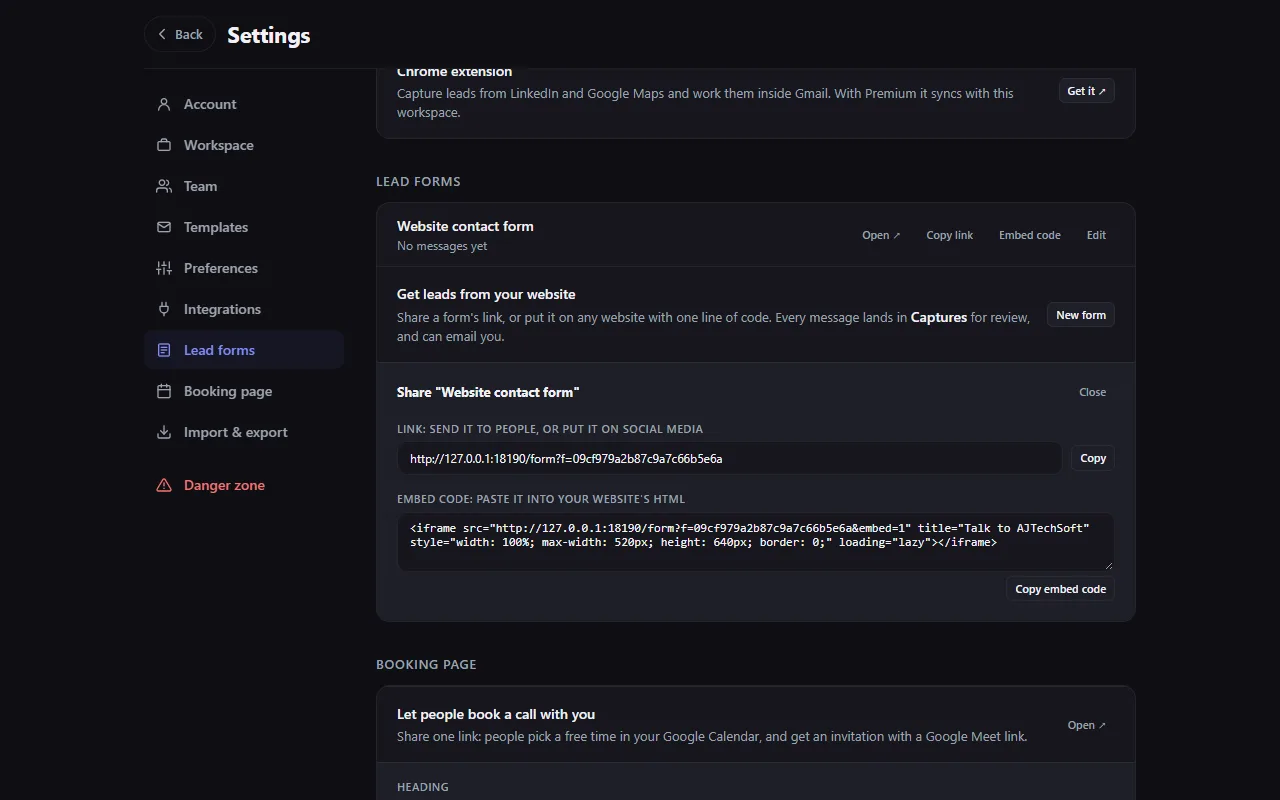
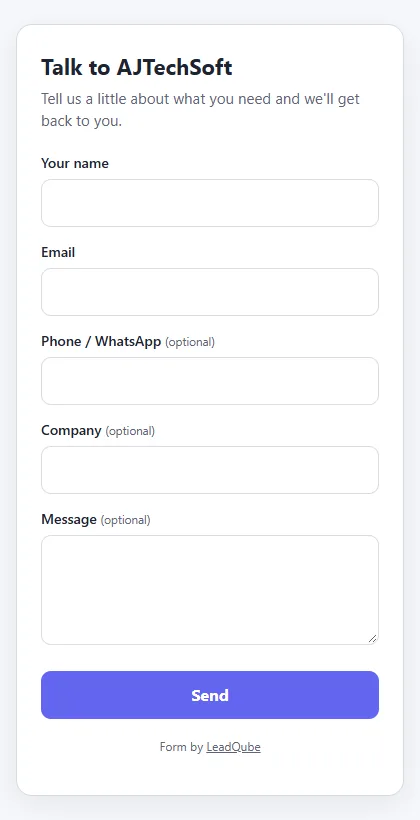

You get an email for each message (you can turn this off). Untick Accept messages to close a form without deleting it.
Booking page Premium
One link where customers pick a free time in your Google Calendar. Each booking gets a Google Meet link, an invitation for them, an event in your calendar and a capture in LeadQube. It needs Google connected.
- Open Settings → Booking page.
- Set the heading, meeting length, time zone, days, hours, how much notice you need, how far ahead people can book, and a gap around your other meetings.
- Press Create booking page. Share the link (email signature, WhatsApp, social media) or embed it in your website.
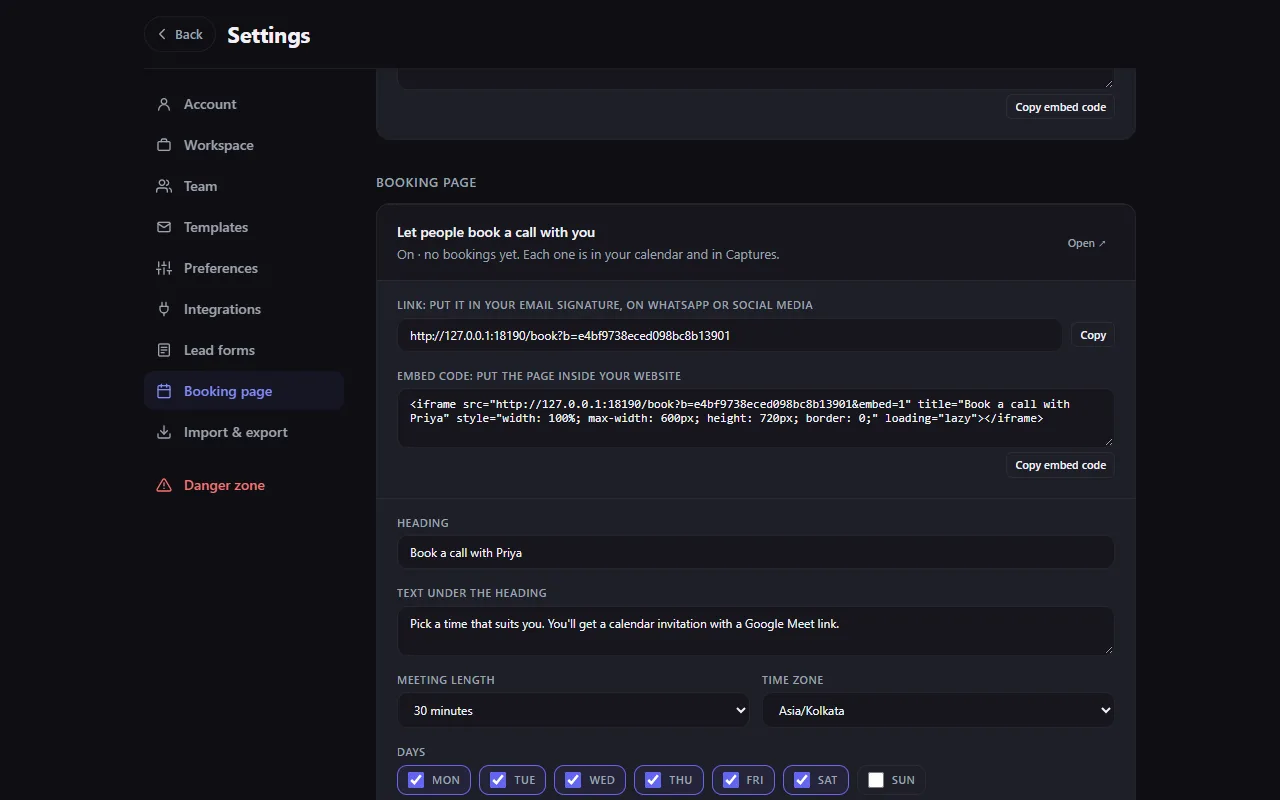
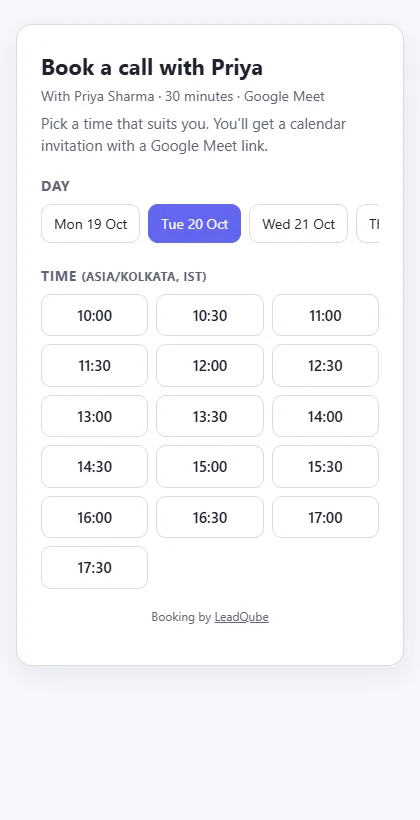
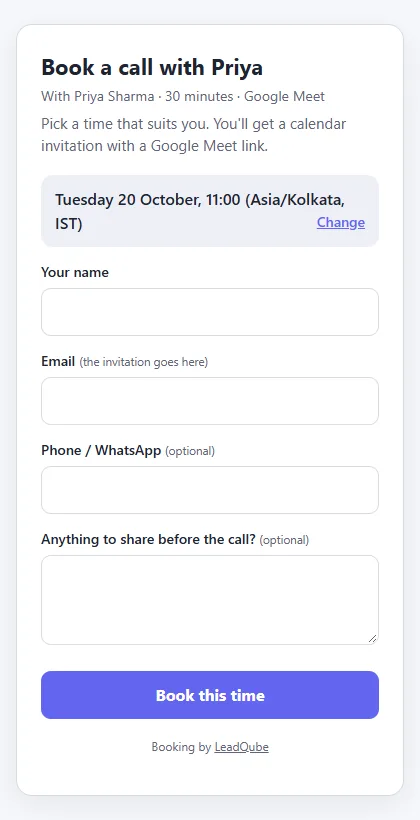
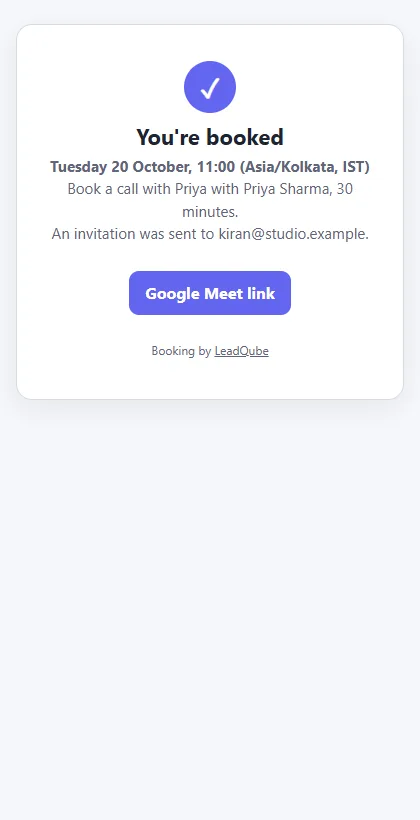
Only your free times are offered: events in your calendar block their time, unless marked Free. A time can't be booked twice. Import the booking from Captures and the lead already has the meeting on it.
Import, export and deleting Premium
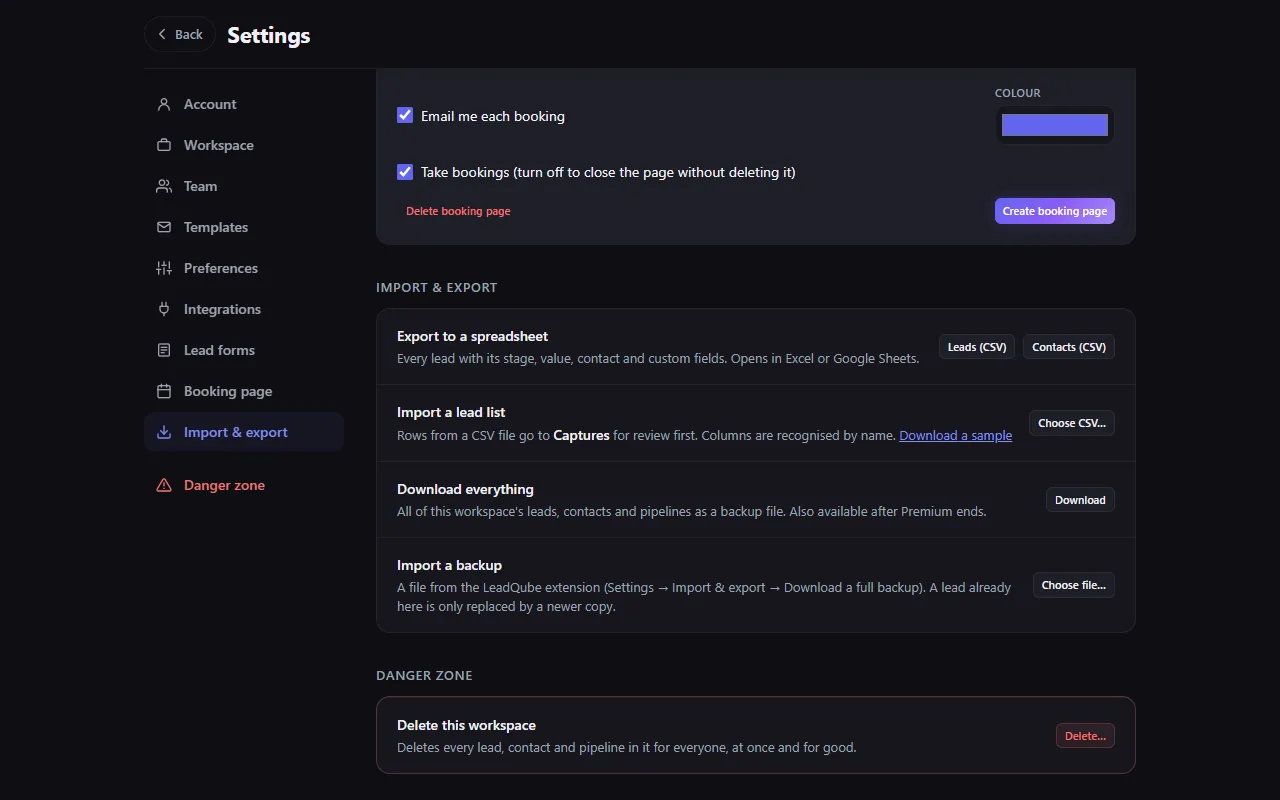
- Export to a spreadsheet: leads or contacts as CSV.
- Import a lead list: a CSV file goes to Captures for review.
- Download everything: all of the workspace as one backup file. Import a backup takes a backup from the free extension or from LeadQube Web.
- Danger zone: the owner can delete a workspace (type its name to confirm); a member can leave one.
The Team plan Team
For people who work in one workspace. The workspace owner buys seats; everyone in the workspace, the owner included, then has every Premium feature (LeadQube in Gmail, templates, reports, tracking, lead scoring, forms, booking page and the rest) without buying Premium themselves.
Buying it
- Sign in to your account page as the person who owns the workspace and find Team plan. If you have no workspace yet, one is made for you when you buy.
- Choose the number of seats (yourself included) and how long: 1 month or 12 months. The price is shown as you choose.
- Tick I agree to the Terms and Refund Policy, press Buy Team plan and pay with Razorpay. The plan is on as soon as the payment is confirmed, and a receipt is emailed to you.
- In LeadQube Web, open Settings → Team and invite your people.
How the price works
The price is per seat, per month, and gets lower the bigger the team: every seat is charged at the price for the team's total size (see the table on the Pricing page). Twelve months cost less than twelve single months. It is a one-time payment for the period you pick: it never renews or charges you again by itself.
Adding seats and renewing
- More seats while the plan runs: on the same page, raise Seats in total. You pay for the extra seats for the time left only, at the price for the new size, and the end date stays.
- Renewing: choose months to add. They start after the current end date, so renewing early loses nothing. You can add seats and months in one payment.
- Fewer seats: seats can't be taken away while the plan runs. When it has ended, buy it again with the number you need (never fewer than the people already in the workspace).
What each person sees
- Members see "Premium, through your team" on their account page and in the extension's Settings. Inviting and creating workspaces are not offered to them.
- The owner sees the seats in use, the end date and a link to add seats or renew in Settings → Team. LeadQube emails the owner a week before the plan ends, the day before, and the day after.
When it ends
Everyone goes back to the free plan and the workspace becomes read-only: they can still open and download everything, and it is kept for 90 days, so renewing brings it all back. Anyone who also has their own Premium keeps working. Members can move their leads back to the free extension from Settings → Sync.
Renewing Premium
Premium does not renew by itself. In its last week LeadQube reminds you: by email (a week before, the day before and the day after it ends), with a banner in LeadQube Web, with Renew in the extension's Settings, and on your account page.
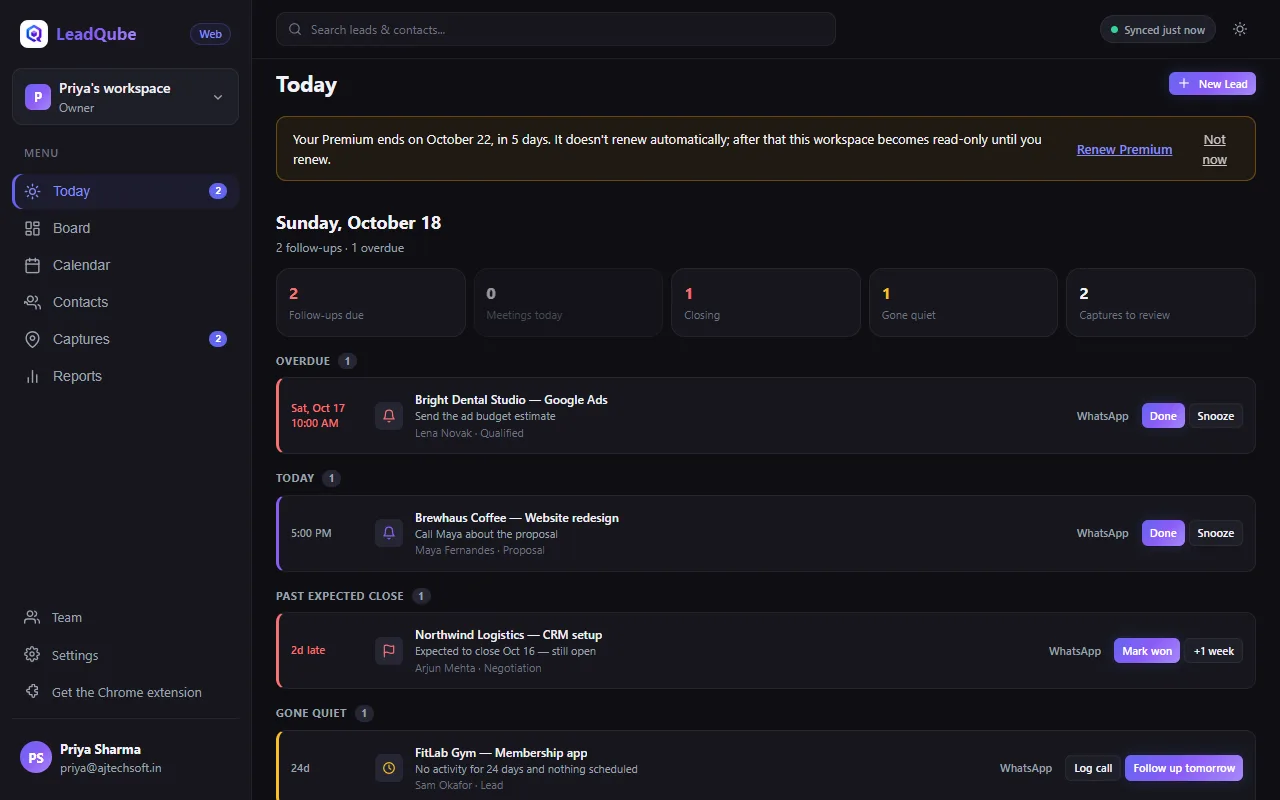
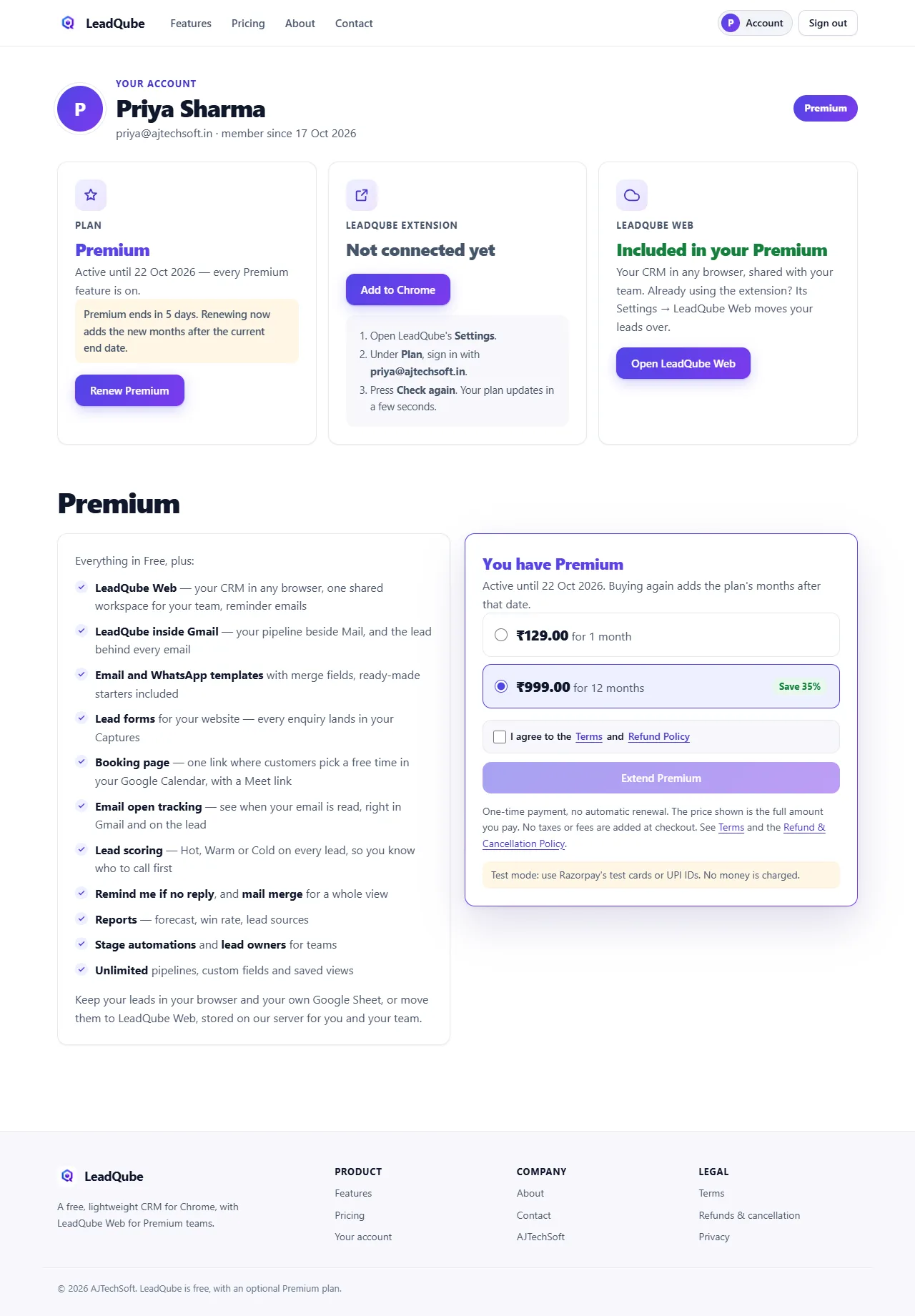
On a Team plan, the workspace owner renews it from the account page (see The Team plan); members don't need to do anything.
If Premium ends: the extension keeps working on the free plan. LeadQube Web becomes read-only: you can still open and download everything, and it is kept for 90 days, so renewing brings it all back. In the extension, Settings → Sync → Move back to this browser brings your leads into the free extension.
Questions and fixes
I bought Premium, but the extension still says Free
Open Settings → Account and press Check again. Make sure you are signed in with the same Google account you bought Premium with.
"Connect your Google account in Settings to use Google Calendar and Tasks"
In LeadQube Web, open Settings → Integrations → Connect Google and allow access (see Google Calendar and Tasks).
I'm in a team. Why can't I invite people or create a workspace?
Members of a Team plan have every Premium feature, but only the workspace owner invites and buys seats, and only people with their own Premium create workspaces. Ask the owner to invite people or add seats.
My team's workspace became read-only
Its Team plan has ended. Nothing is deleted: the owner can renew it on the account page (The Team plan) and everyone can edit again straight away. Until then you can still open and download everything.
The invitation email never arrived
The invitation is saved either way. Ask the person to sign in to LeadQube Web with the invited Google account: the invitation is waiting under Settings, with Join. Also check their spam folder.
The LeadQube panel doesn't show in Gmail
It needs Premium (your own, or your team's plan), and LeadQube signed in with the same Google account as that Gmail. After updating the extension, reload the Gmail tab.
The LinkedIn or Google Maps button doesn't appear
Reload the page. On LinkedIn the button appears on profiles and people searches; on Google Maps, on a business and on a list of results.
Where are my leads kept?
On the free plan, in your browser and, if you connect one, your own Google Sheet: they never reach our server. With LeadQube Web they are stored on LeadQube's server for you and your team. See the Privacy Policy.
Still stuck?
Write to us from the Contact page.